Connect your CRM once and HellouOne keeps it up to date on its own:
- Contacts: every contact created or edited here (name, email, phone, company) is sent to the CRM. If it already exists there it is updated; otherwise it is created. Nothing in the CRM is ever deleted.
- Calls: every WhatsApp and phone dialer call is logged on the contact, with direction, outcome, duration and agent. In HubSpot and Pipedrive as a CRM call; in GoHighLevel as a note.
- Resolved conversations: when a conversation is resolved, the contact gets a note with the inbox, the agent, the labels, a link to the conversation and the latest messages.
- Changes from the CRM: what is edited in the CRM comes back to HellouOne.
This is not the same as the AI agent's connectors (LIA → Marketplace → Connectors): those are tools the agent uses in the middle of a chat. CRM integrations work in the background for the whole account.
Connect
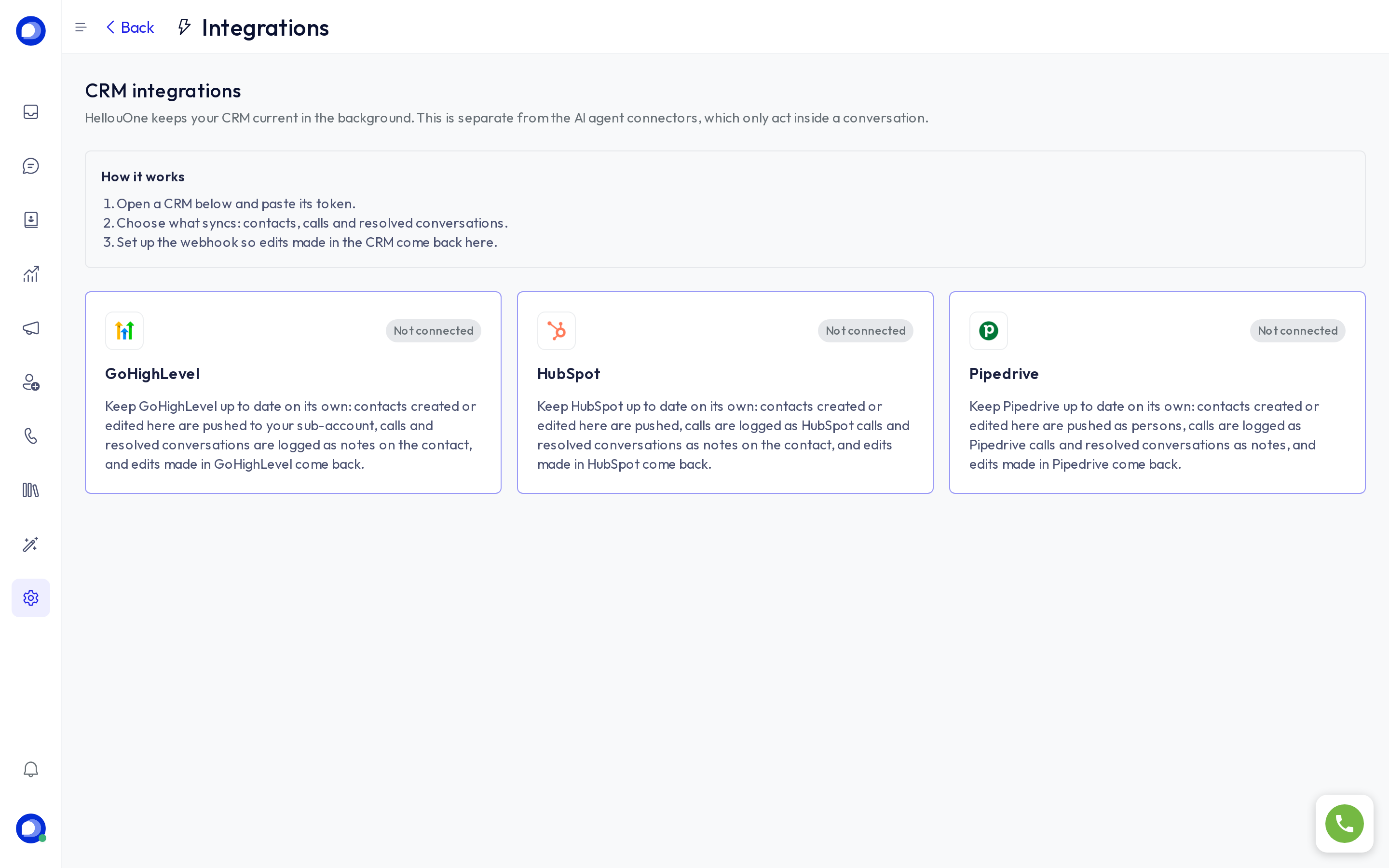
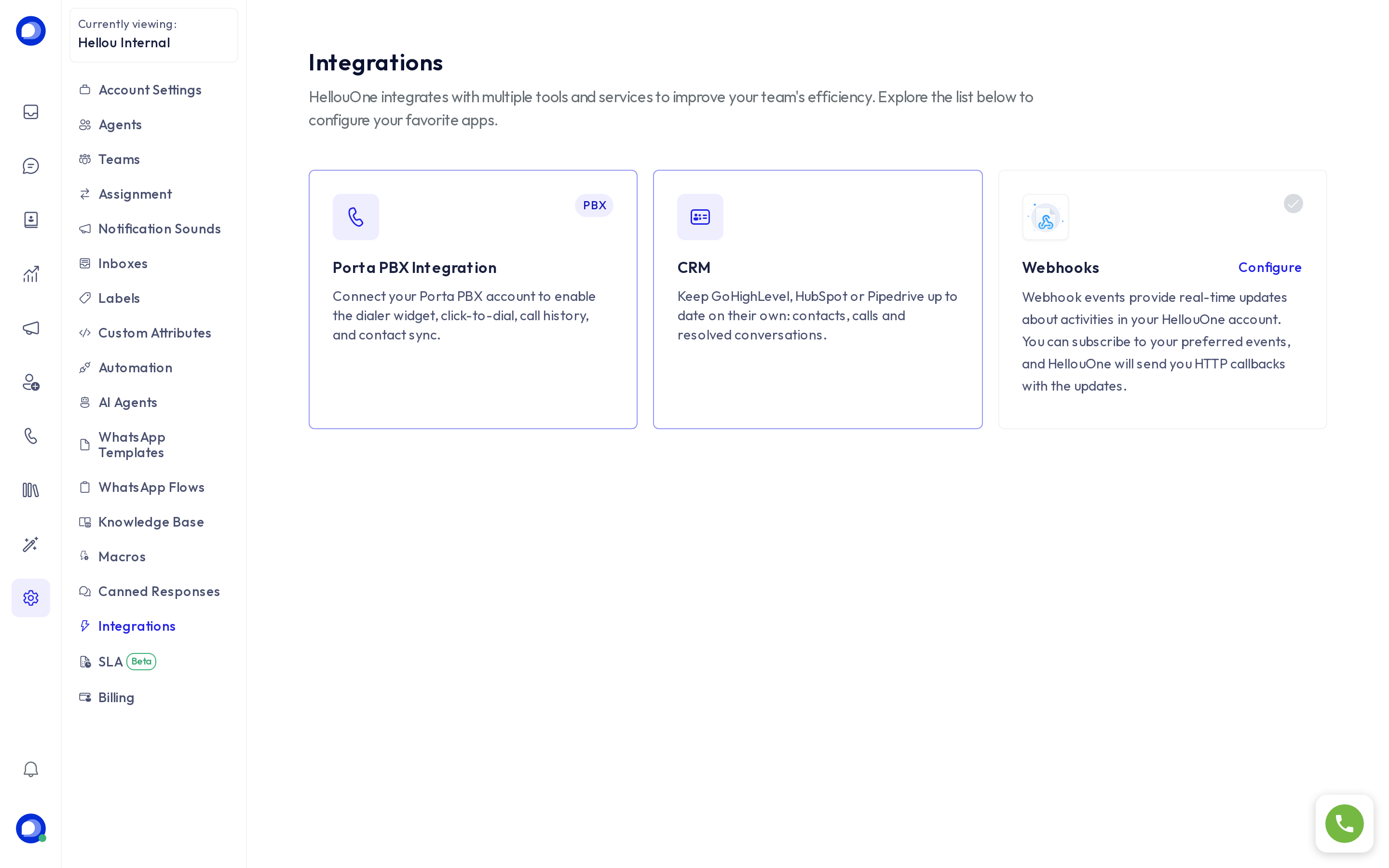
- Open Settings → Integrations → CRM and choose your CRM.
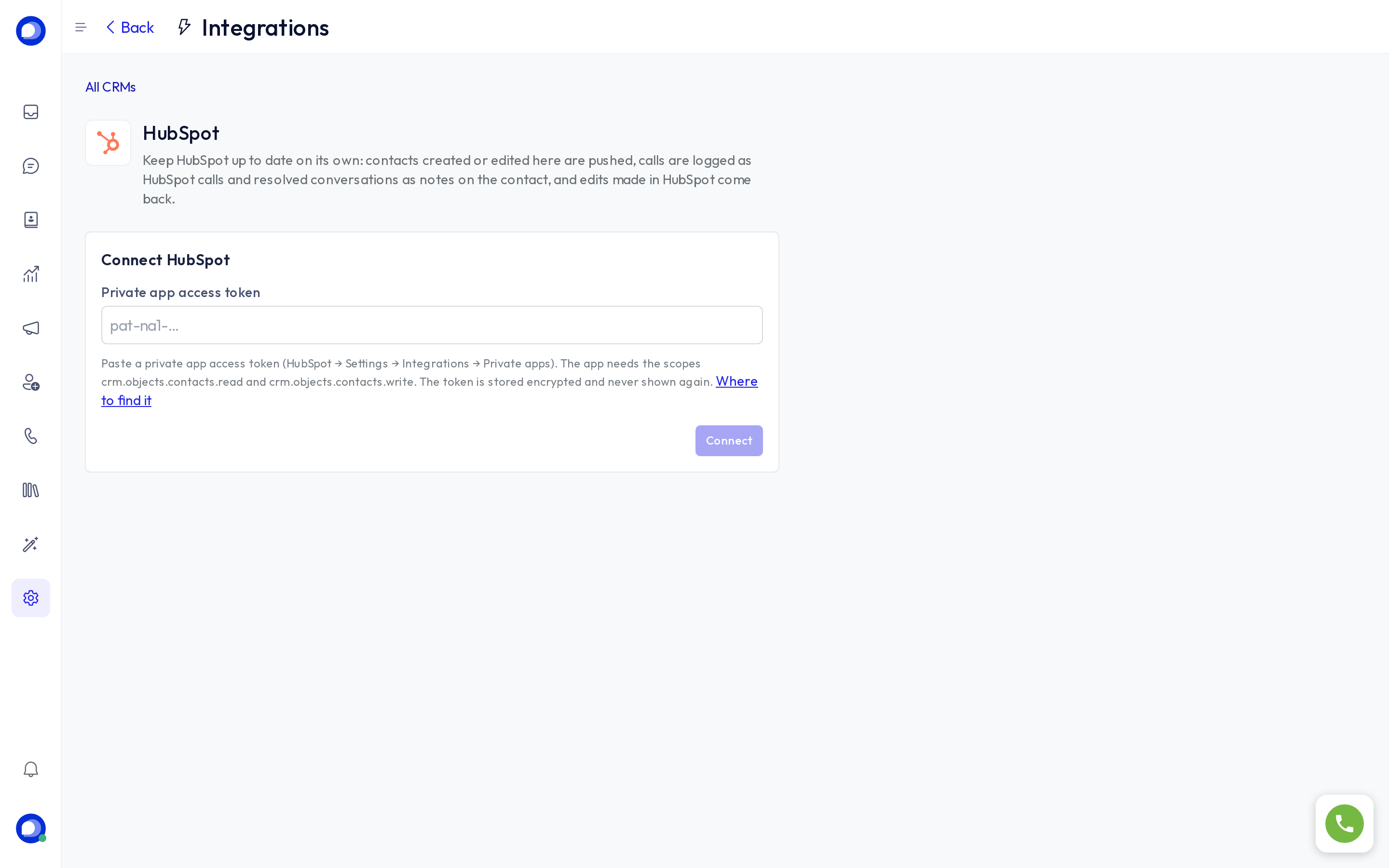
- Paste the token:
- GoHighLevel: create a Private Integration in the sub-account (Settings → Private Integrations) with the scopes
locations.readonly,contacts.readonlyandcontacts.write. Paste the token and the Location ID (Settings → Business Profile). - HubSpot: create a private app (Settings → Integrations → Private apps) with
crm.objects.contacts.readandcrm.objects.contacts.write. - Pipedrive: your personal API token (Personal preferences → API). If you already connected that CRM as an AI agent connector, you can tick Use the token of the … AI agent connector instead of pasting it again.
- GoHighLevel: create a Private Integration in the sub-account (Settings → Private Integrations) with the scopes
- Click Connect. HellouOne checks the token right away.
- Choose what syncs with the switches.
- Optional: Sync existing contacts sends every contact you already have (a little at a time, to respect the CRM's limits).
Getting CRM changes back
- GoHighLevel: in Automation → Workflows create a workflow with the triggers Contact Created and Contact Changed, add the Webhook action (POST) and paste the URL the page shows. Publish the workflow.
- HubSpot: in your private app's Webhooks tab paste the URL as the target and subscribe to Contact creation and Contact property change. Paste the app's client secret in HellouOne so every request is verified.
- Pipedrive: nothing to do; HellouOne registers the webhook when you connect and removes it when you disconnect.
That URL carries a secret token. If it leaks, click Generate a new URL and update it in the CRM.
If it stops syncing
The page shows the last error. If the CRM rejects the token three times in a row, the integration pauses and administrators get an email: paste a new token to resume it.