WhatsApp calling is configured inbox by inbox. You need a WhatsApp Cloud inbox (connected through Meta) and the calling feature enabled on your account (included from the Growth plan).
- Go to Settings → Inboxes and open your WhatsApp inbox.
- Open the Configuration tab and scroll down to the WhatsApp Calling section. The options are loaded straight from Meta, so they can take a few seconds to appear.
- Tick Enable calling on this number so customers can call you on WhatsApp.
- Under Call icon, choose whether the call button shows in the customer's WhatsApp chat (Visible) or is hidden (Hidden everywhere).
- If you want to call customers back, tick Ask callers for callback permission: when a customer calls you, WhatsApp asks them to allow calls from your number.
- Click Save calling settings. This button saves only this section; the Update button on the Settings tab doesn't touch it.
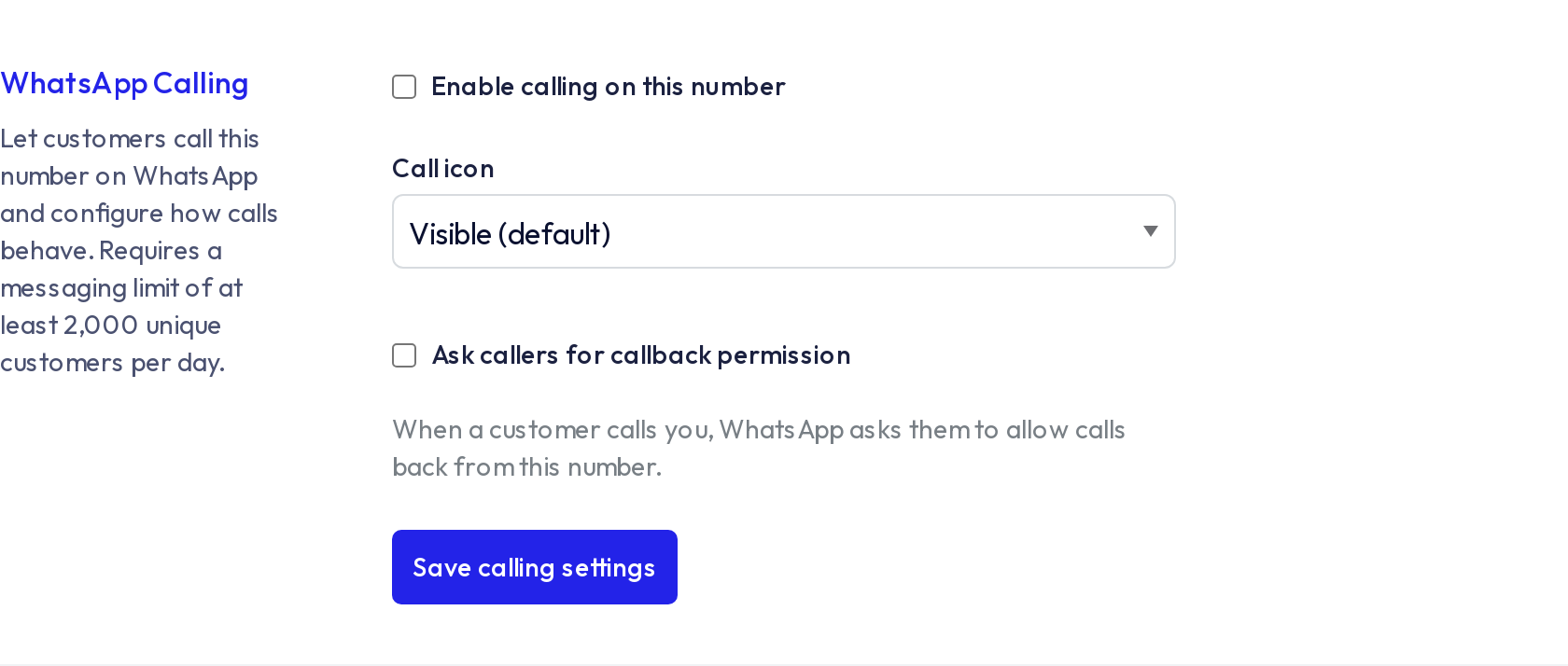
Meta only allows calling on numbers with a messaging limit of at least 2,000 unique customers per day. If your number's limit is lower, Meta rejects the change.
Who gets the call alert
When a call comes in, HellouOne rings in this order:
- If the conversation already has an assigned agent, only that agent rings.
- If nobody is assigned, the inbox collaborators who are online ring.
- If none of them is online, every collaborator on the inbox plus the account administrators ring, so no call goes unanswered in silence.
Make sure the agents who take calls are on the inbox's Collaborators tab and have their status set to Online.
How a call is answered from the browser: WhatsApp calls from the browser.
If you don't see the WhatsApp Calling section, the feature isn't enabled on your account (it's included from the Growth plan) or the inbox isn't WhatsApp Cloud. Write to support@hellou.ai.