A resolved conversation is not deleted or lost: the whole history stays on the contact and, if the customer writes again, it reopens by itself. Resolving only says "this customer has been taken care of". When nobody resolves, the Open list grows until it is impossible to see who is actually waiting for a reply. This guide is the minimum routine to keep that from happening: a three-minute read.
The four statuses
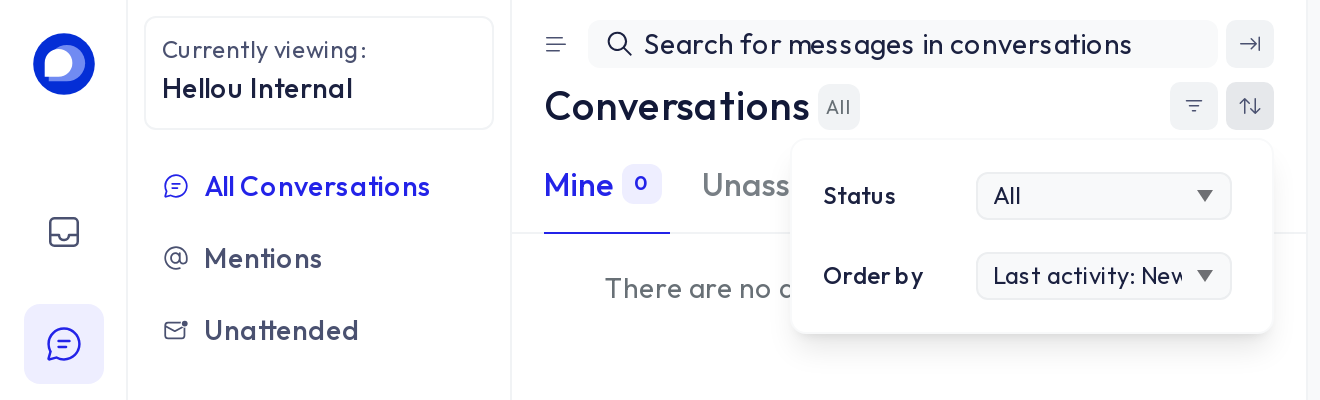
- Open: someone on the team needs to reply. It is the list you see when you sign in.
- Pending: the AI agent is handling it. It does not show under Open; it becomes Open only when the assistant hands it to a person or an agent takes it.
- Snoozed: you hid it until a given time or until the customer replies. It comes back to Open on its own.
- Resolved: the customer has been taken care of. If they write again, it returns to Open automatically.
Above the list, the arrows icon opens the Status filter to view any of them (or All).
The routine: resolve when you are done
- Help the customer until their question is answered or the matter is in someone else's hands.
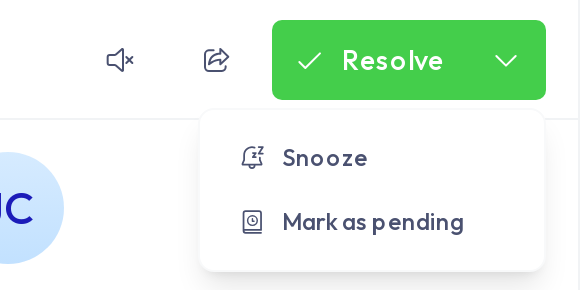
- Click Resolve, at the top right of the conversation. It leaves the Open list.
- Waiting for the customer to confirm something? Do not leave it open: open the menu next to Resolve and choose Snooze (until an hour, until tomorrow or until the customer replies). It comes back by itself when due.
- If the conversation belongs to someone else, assign it from Assigned agent in the right panel, or mention them with
@in a Private note. Do not keep it open in your list "just in case".
Rule of thumb: when you close the window, the conversation should be resolved, snoozed or assigned to whoever continues. If it is open and yours, the system understands the customer is still waiting for you.
What closes on its own
So the inbox does not depend only on everyone's discipline, your administrator can turn on two automatic closures:
- An open conversation with no activity for several days resolves itself (in Settings → Account settings, "Auto resolve conversations").
- A pending conversation with the AI agent that the customer abandoned resolves itself after a period of inactivity (in the AI agent's Inactivity tab).
In both cases the customer can write again and the conversation reopens, so nothing is lost.
If you have an AI agent
The assistant answers on its own while the conversation is Pending. It hands over to you, and the conversation becomes Open and assigned, only when a person is needed: the customer asks for one, picks a product or property, gets upset, or asks something the assistant cannot resolve. Outside business hours the assistant keeps answering and, if it hands over, it tags the conversation [Fuera de horario] (out of hours) so you know it arrived at night or over the weekend.
When you finish a conversation the assistant handed to you, resolve it like any other. If the customer returns, the assistant takes care of them again from the start.
Shortcuts
- ⌘ K (or Ctrl K) opens the command menu: type "resolve" and press Enter.
- ⌘ / shows every keyboard shortcut.
- In the list, hover over a conversation to see Assign to me without opening it.
More about the conversations screen in Conversations: your daily workspace.