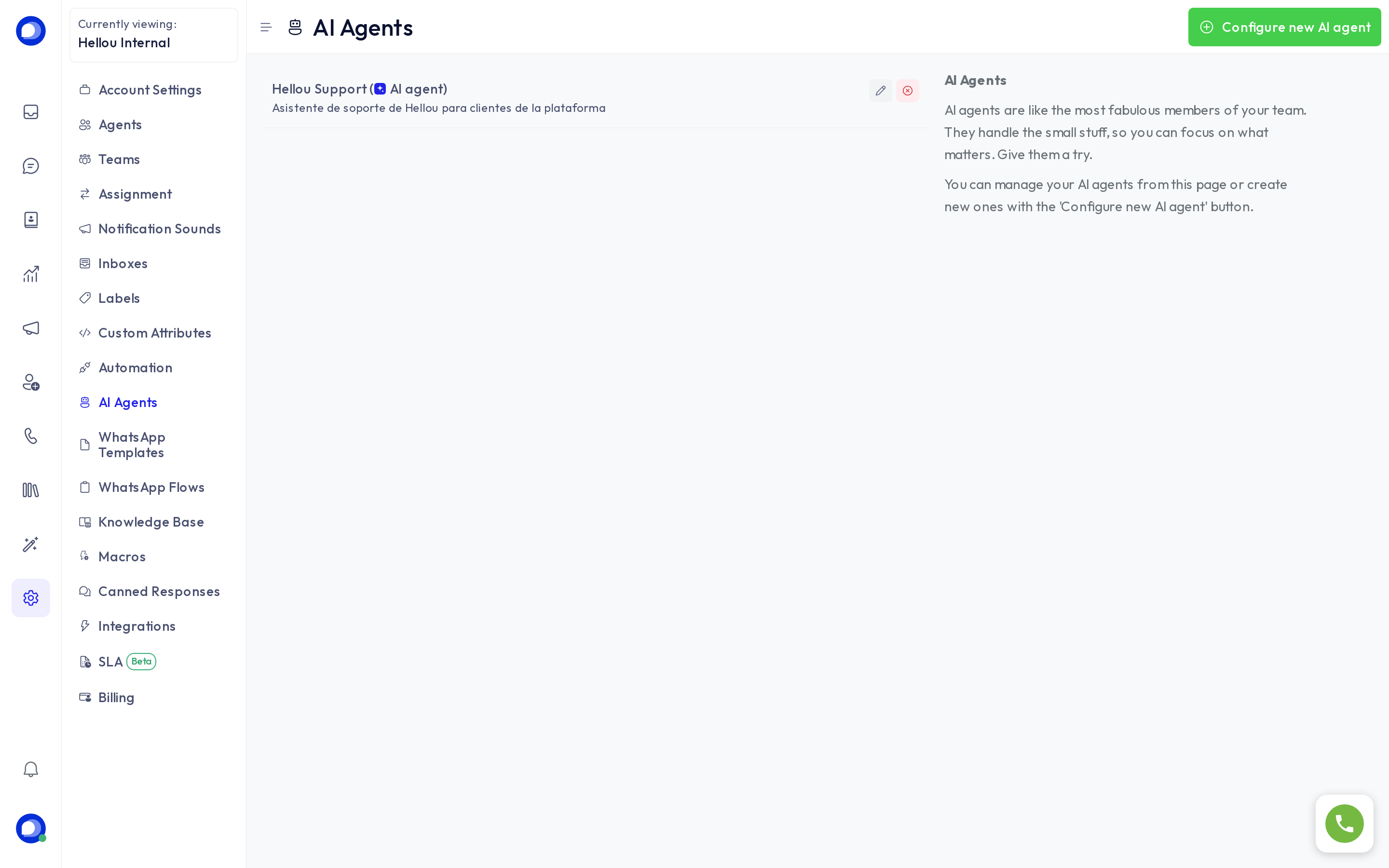
An AI agent answers your customers in an inbox and hands the conversation to the right team when a person is needed. It runs inside HellouOne: there is no external server to operate. You set everything up in one editor — persona, knowledge, handover, rules and tools — and try it in a safe chat before putting it to work.
Only administrators create and edit AI agents, and your plan must include them.
Create it
- Open Settings → AI Agents.
- Click Configure new AI agent.
- Choose AI agent.
- Write a Name and click Create and configure. It starts with sensible defaults and the editor opens.
Persona & model
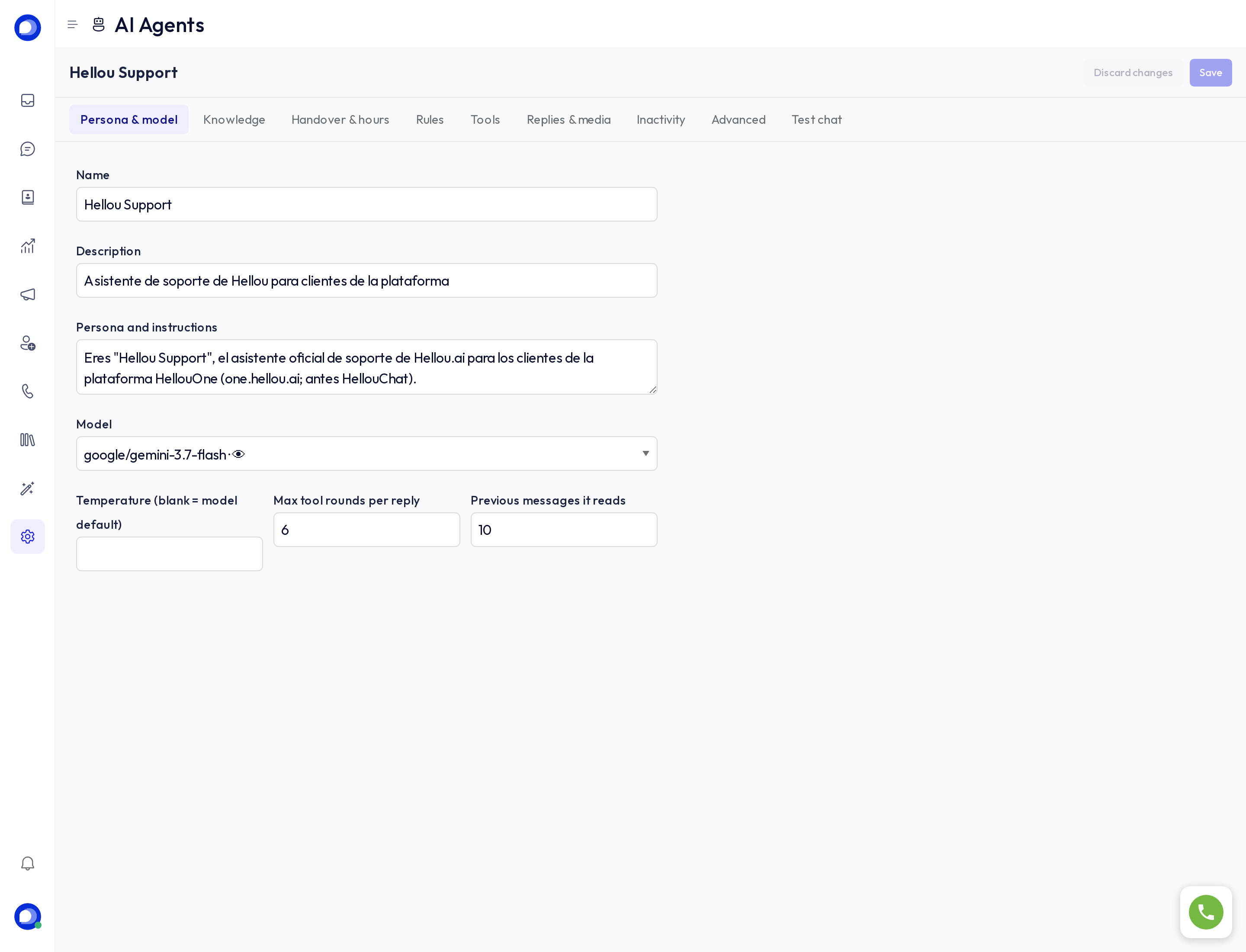
On the Persona & model tab, write in Persona and instructions who the AI agent is, what it helps with, its tone and what it must never do. Pick the Model; the default suits most accounts and already reads images (models that read images show · 👁 in the list).
Knowledge
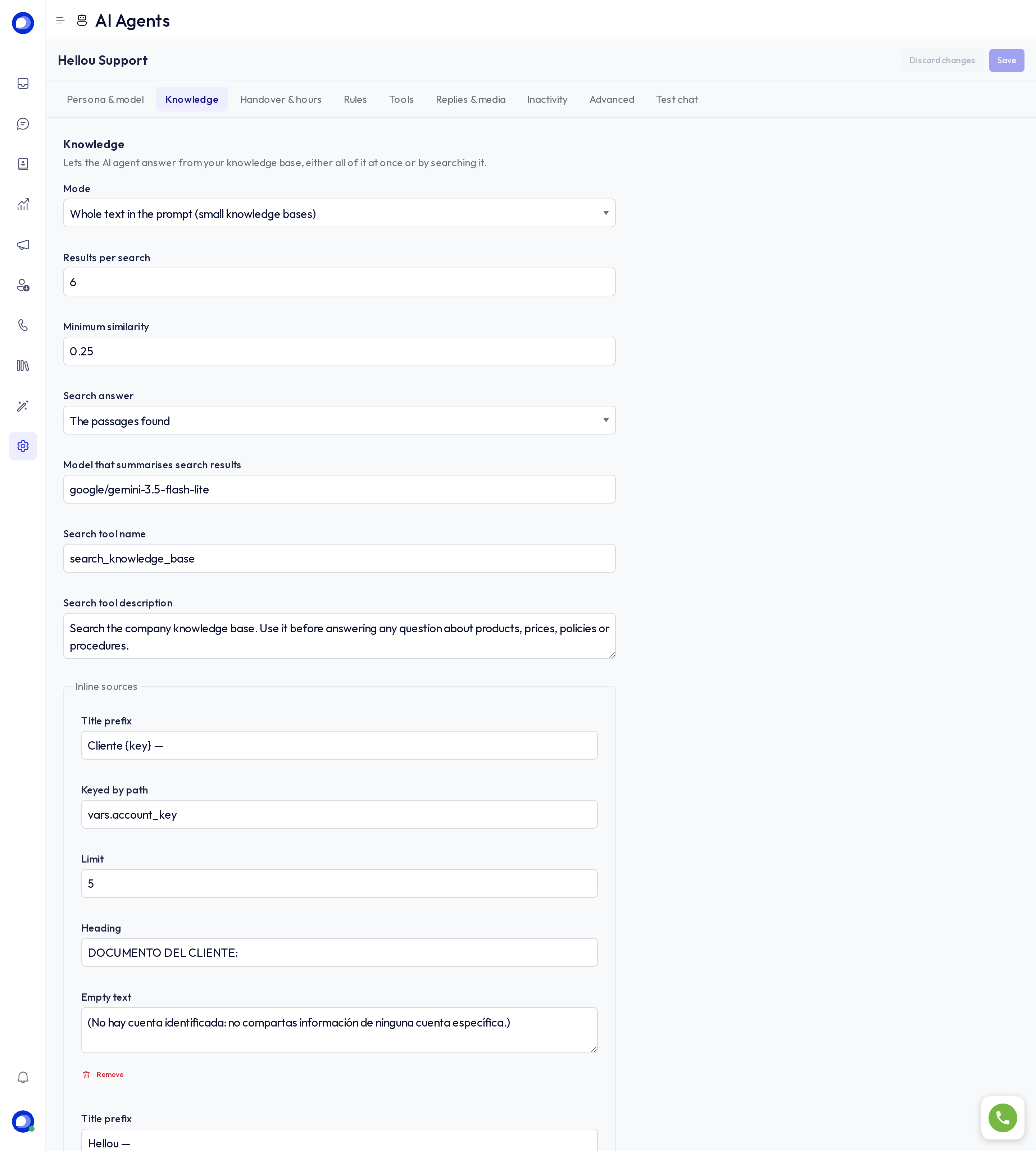
In Knowledge, use Mode to choose whether the AI agent uses your knowledge base and how: No knowledge, Whole text in the prompt (small knowledge bases) or Search the knowledge base (for large ones: it looks up what each question needs). When searching, Search answer decides what the AI agent receives: The passages found or A summary of the passages. Documents are uploaded in Settings → Knowledge Base.
Handover & hours
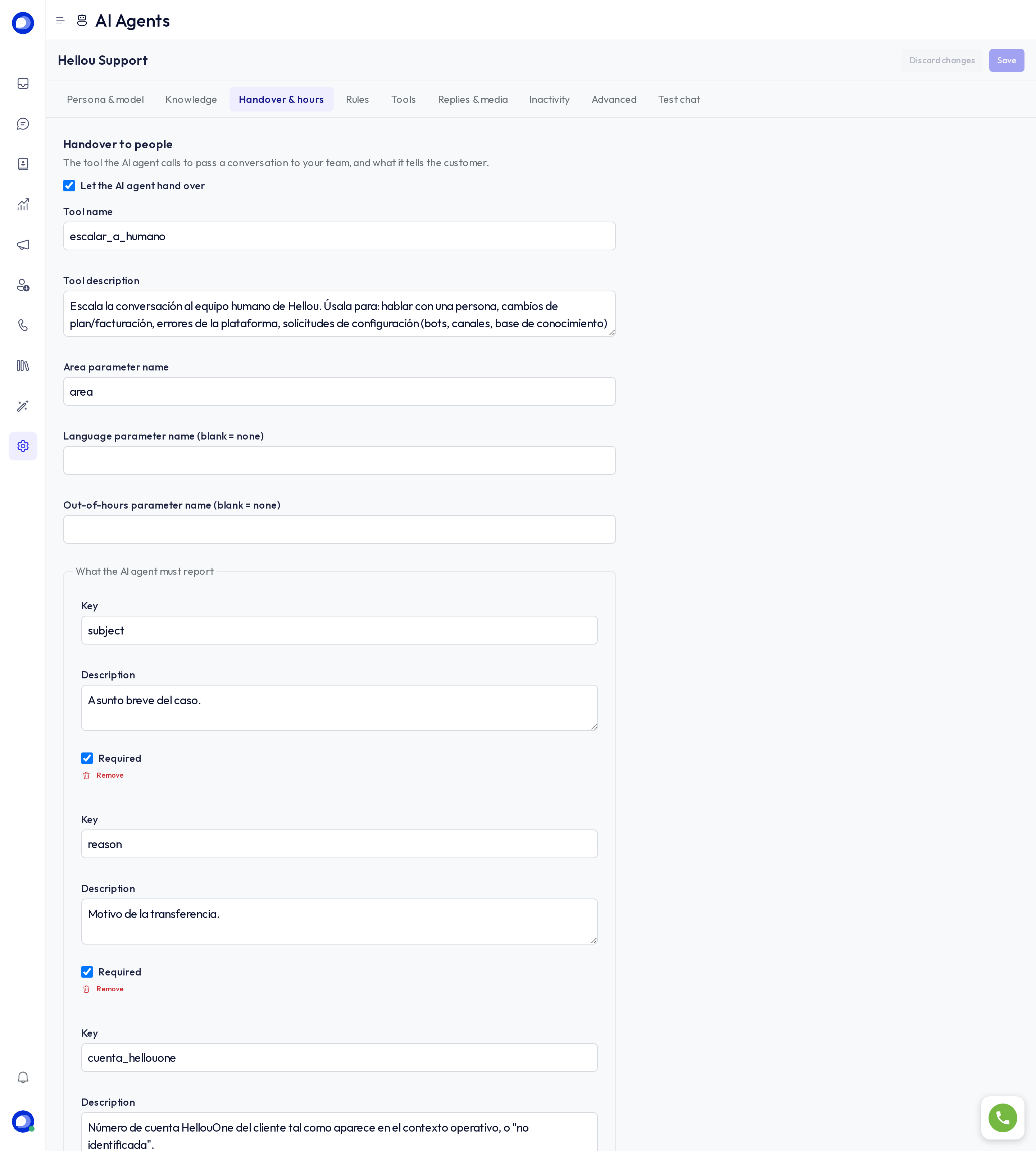
The Handover & hours tab says who the AI agent passes a conversation to and what it tells the customer.
- Handover to people: turn on Let the AI agent hand over and, if you like, Send the customer a handover message.
- Business hours: turn on Use business hours, pick the Time zone and fill in the Weekly schedule. Outside hours a handover still opens the conversation for your team, except in areas with Outside hours: register it and keep answering (do not open). The customer gets the out-of-hours message only when Send the customer a handover message is on (it starts off).
Smart routing
If your plan includes AI classifications, the tab shows Smart routing, above Areas. Before the AI agent answers, it reviews the customer's message — whether they ask for a person, make a legal threat or a complaint, which area fits — and can hand the conversation over directly, without the AI agent replying. When it does, the customer always gets a notice; if the AI agent has no areas, the notice speaks of "our team".
In Mode choose:
- Off.
- Shadow (classifies and records, never transfers): to see what it would do before turning it on.
- On (transfers when a rule below fires).
Then choose when it transfers (Transfer when the customer asks for a person, Transfer on a legal or regulatory threat (marked urgent), Transfer an upset customer with a formal complaint, Transfer requests outside the topics below) and describe its topics in What this AI agent handles. Routing tells areas apart by what each one handles: while Mode is not Off, the editor points out areas missing "When the AI agent should pick this area".
If a notice says the platform has routing off or in Shadow only for now, your choice is saved and takes effect once it is enabled.
Reply check: with Check answers before sending set to On, the AI agent checks every answer before sending it and holds promises you did not allow (refunds, discounts, dates), requests for passwords, codes, cards or ID photos, and unsafe advice; if your knowledge base covers every answer, also turn on Hold answers your knowledge base does not back (it only works with the Knowledge Mode set to Search the knowledge base, and only checks answers that searched your knowledge). Like routing, the platform may have the reply check off or in Shadow only for now: your choice is saved and takes effect once it is enabled, though here the editor shows no notice. A held answer goes into a private note with the reason, and the conversation passes to a person when Let the AI agent hand over is on; otherwise the customer gets the fallback reply. In Promises the AI agent may make, list the ones that are fine (e.g. free shipping over $100).
Areas
Each area is a handover destination. For each one fill in:
- Name: your agents see it in the handover note.
- When the AI agent should pick this area: what it handles, in plain words.
- The Team or Agents that receive it, and whether to Mark urgent.
- If two areas overlap: What this area does NOT handle and Phrases its customers write (up to 5).
- Optional: This area has its own hours, an Own notice to the customer and Outside hours: register it and keep answering (do not open).
Mark one as the Default area: it receives whatever fits no other.
Rules
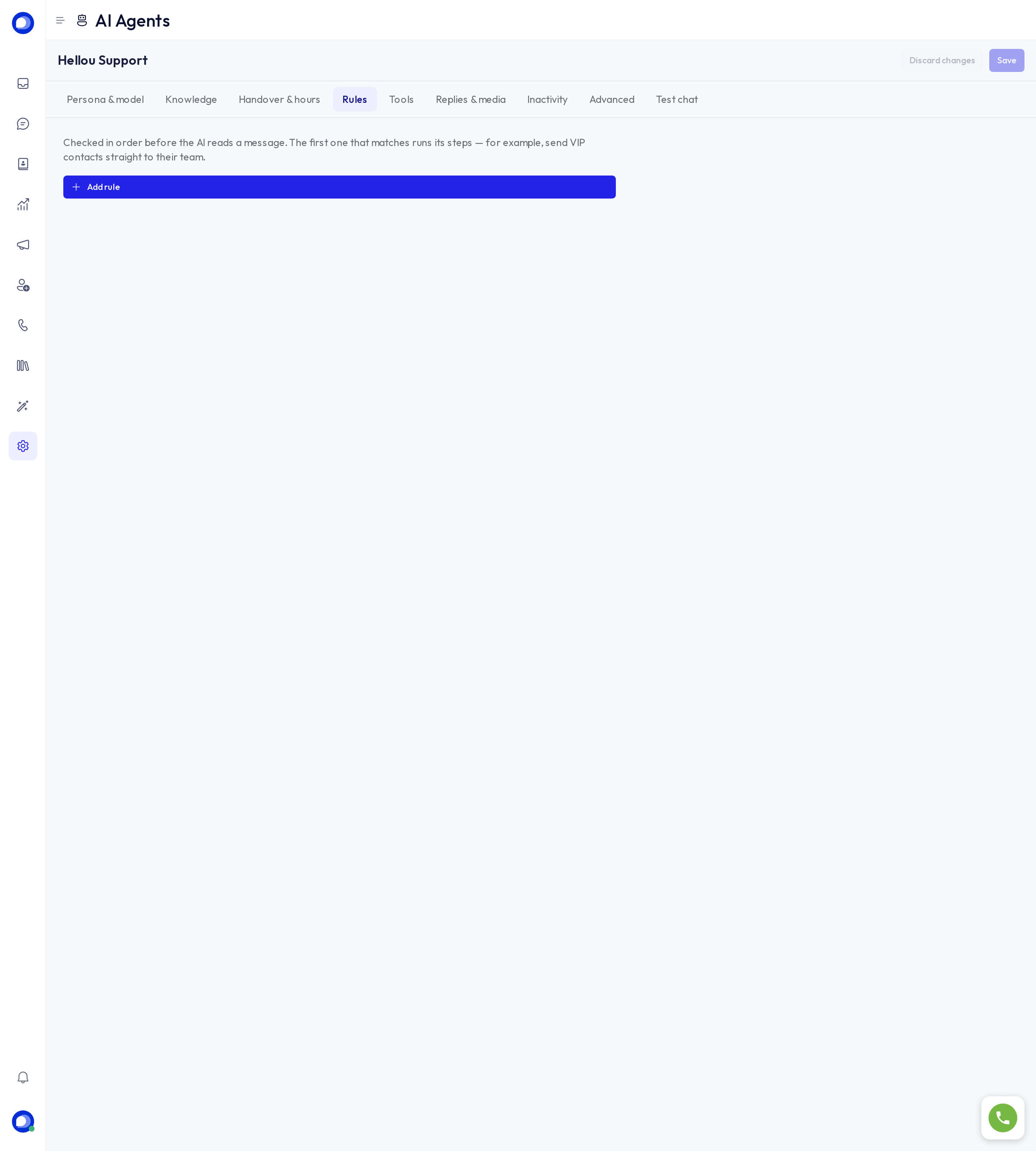
Rules are checked in order before the AI reads a message; the first one that matches runs its steps. For example, send VIP contacts straight to their team.
- Click Add rule and give it a Rule name.
- Under When, pick one Condition; tick Not when the opposite must hold.
- Under Then, add the steps; they run in order.
- Tick The AI does not answer afterwards when the rule settles the message on its own.
Tools
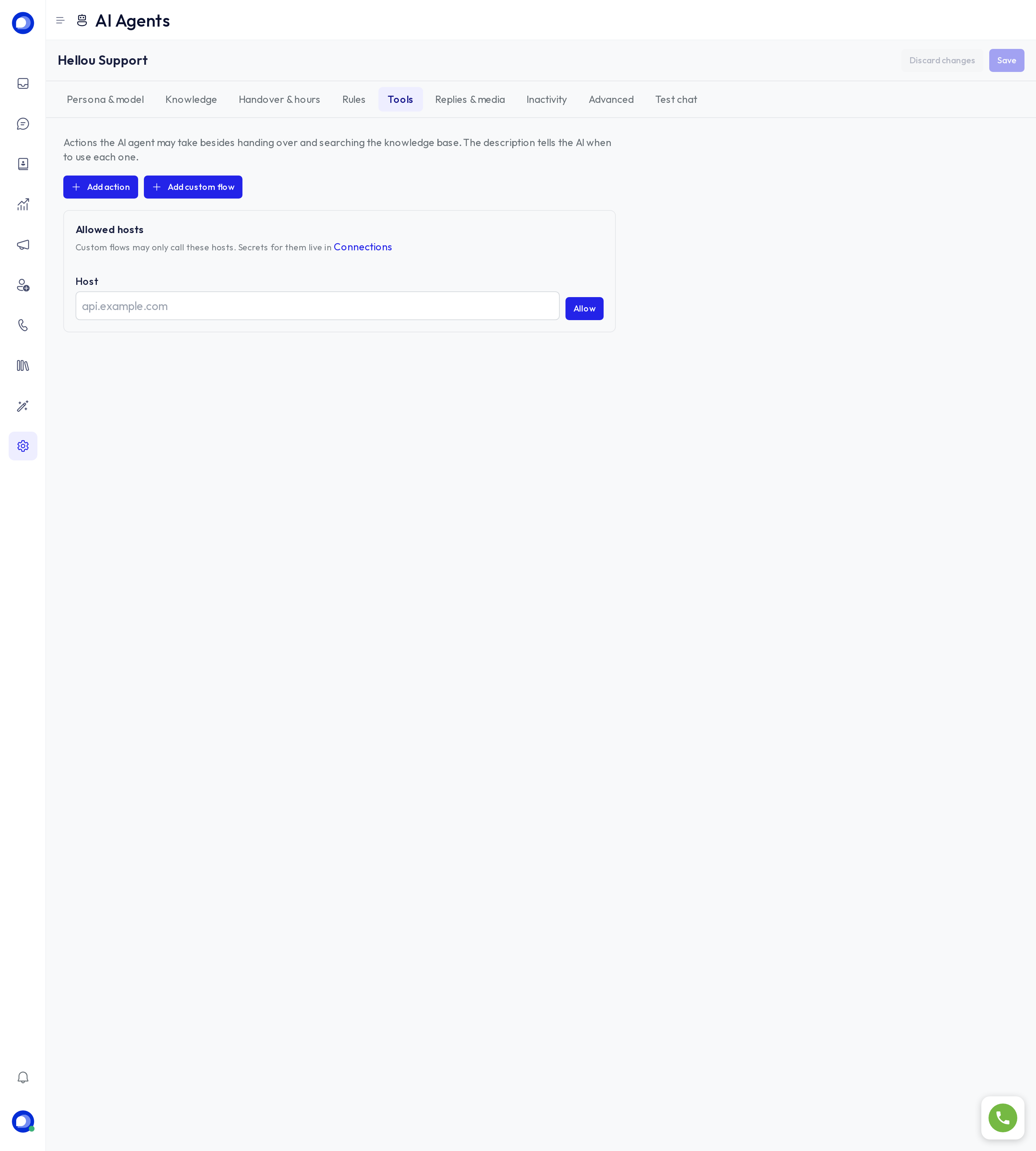
In Tools you choose what else the AI agent may do besides handing over and searching your knowledge:
- Add action: update the contact's name, email or phone, save a conversation attribute, add a label or resolve the conversation.
- Add custom flow: a sequence of your own steps, for example looking up an order's status in your system. It may only call the Allowed hosts, and its keys are kept in Connections. Click Test to run it with test input: read calls (GET) really run against your system, and writing steps (POST, PUT, PATCH, DELETE and actions on the conversation) are not run; you see what they would have done. Custom flows depend on your plan.
- Connector: services such as your CRM, store or calendar are connected in LIA → Marketplace → Connectors (see "Connect a service to your AI agent").
In When to use it, tell the AI when to use each tool.
Test chat
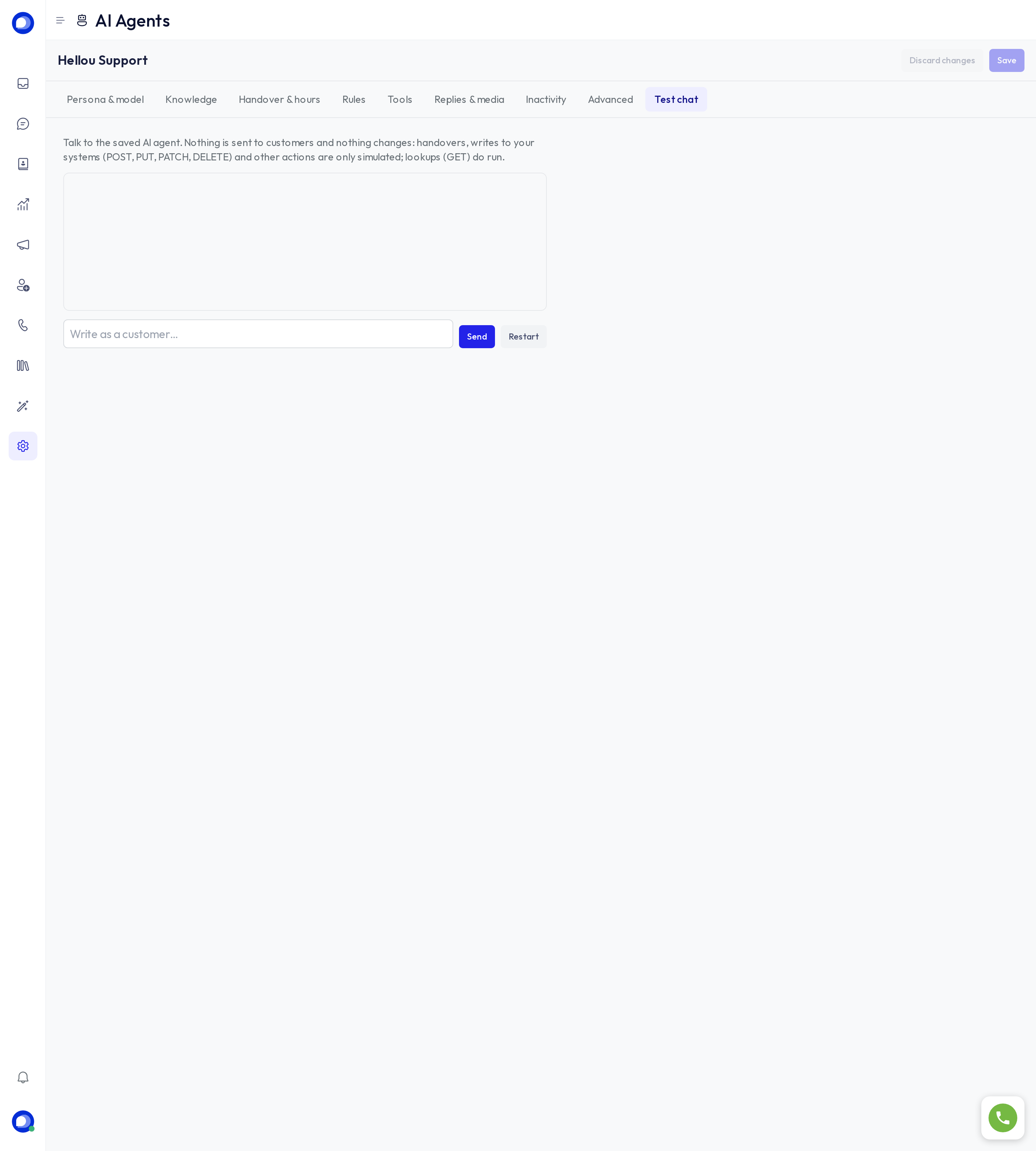
In Test chat, write as a customer and see how the saved AI agent answers. Nothing is sent to customers and nothing changes: handovers and other actions are only simulated, and you see what it would run. Custom flow tools really make their read calls (GET) but do not run their writing steps. The test chat does not run Rules, smart routing or the reply check: try those in a real conversation. If you have unsaved changes, the chat uses the saved version.
Save and put it to work
- Click Save.
- Open Settings → Inboxes, pick the inbox and go to AI Agent Configuration (not shown on email inboxes).
- Choose this AI agent in Select AI agent and click Update. From then on it answers new conversations in that inbox.
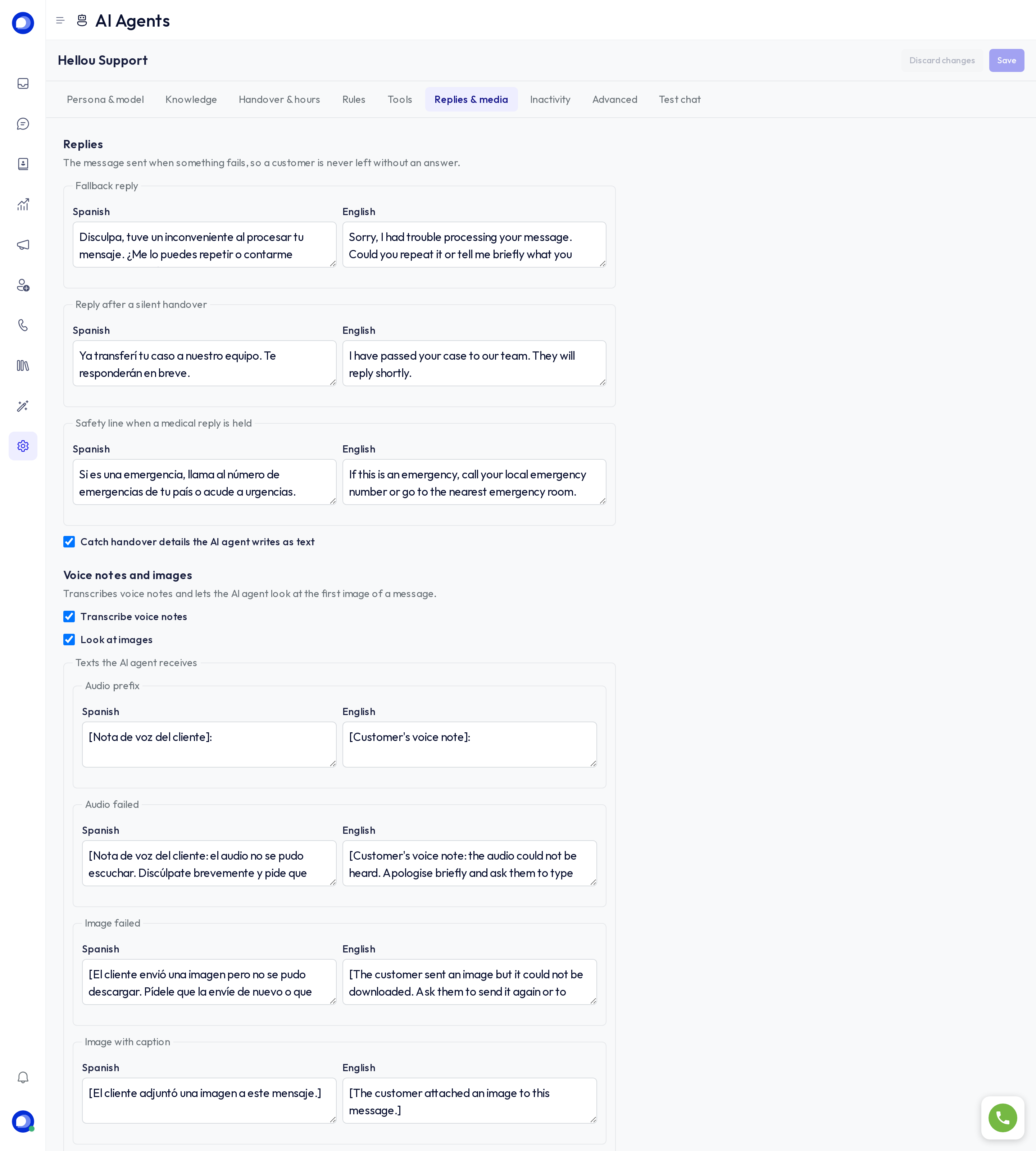
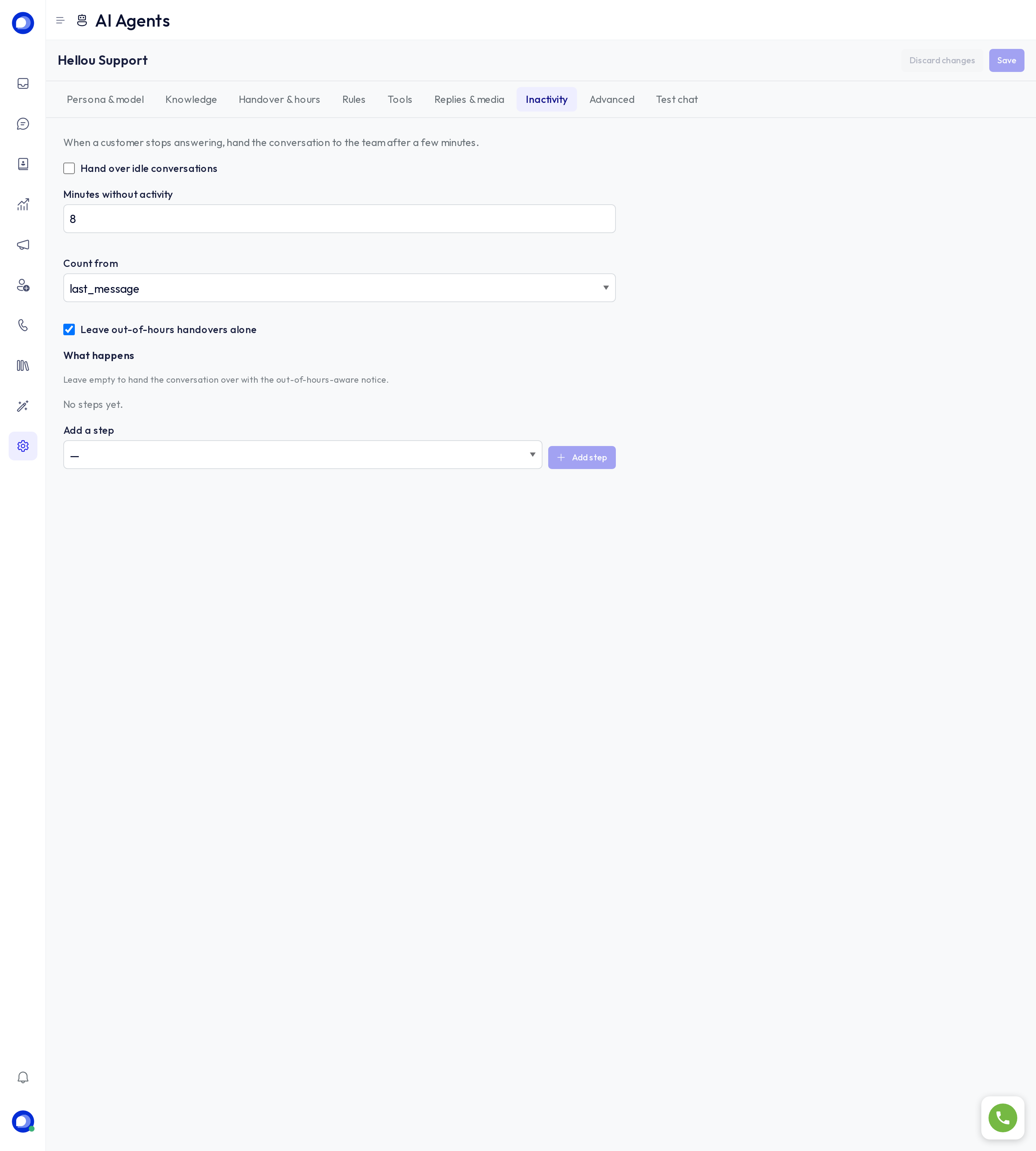
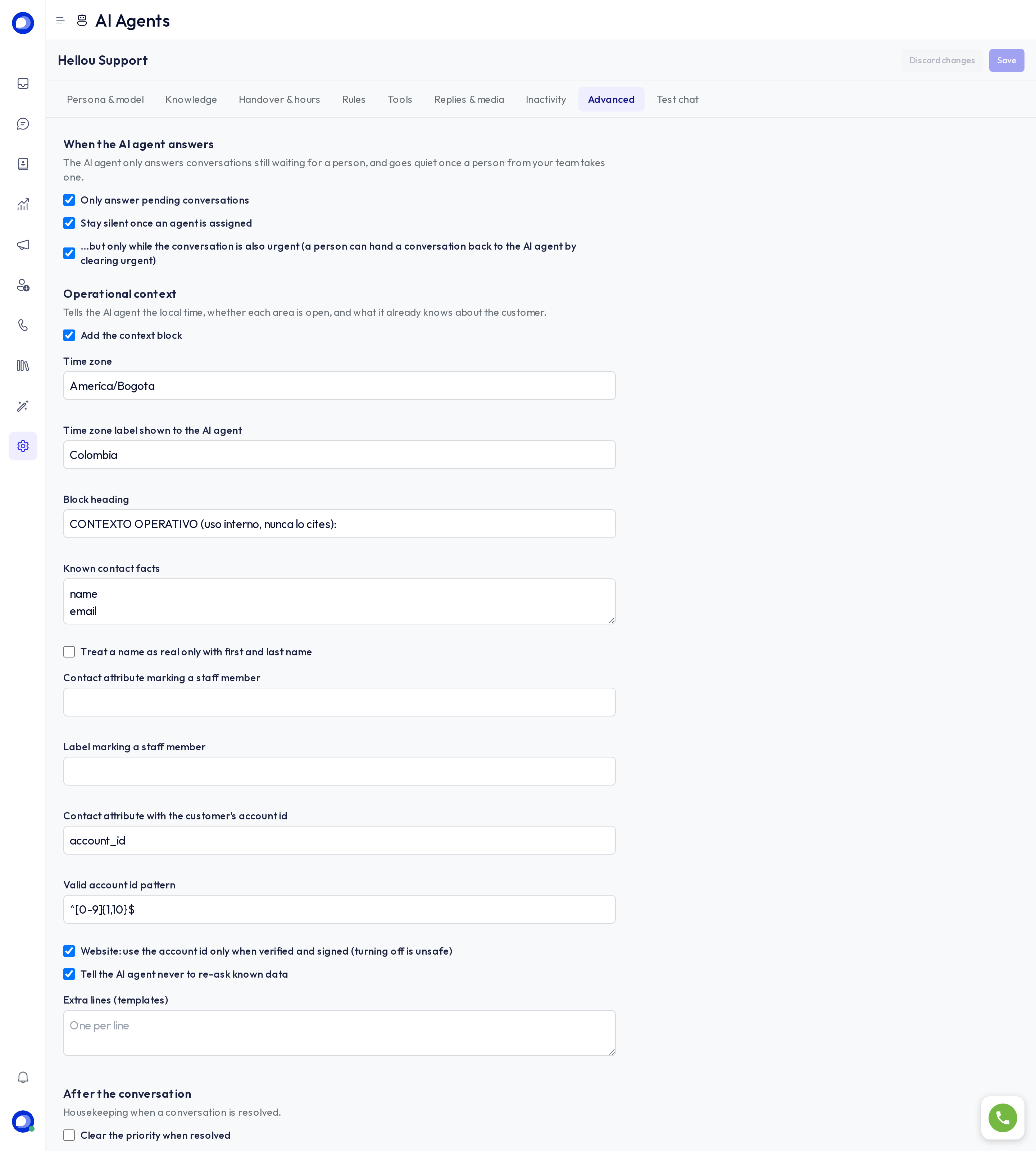
The other tabs (Replies & media, Inactivity, Advanced) fine-tune details such as the fallback reply, voice notes and images, what to do with idle conversations and when the AI agent answers; the starting values work for most accounts.
Ask LIA
LIA can adjust your AI agent for you and shows you each change to approve before it is applied. For example: "Make my AI agent shorter and stop offering discounts", "Add a Billing area for the Collections team" or "Show me how to create an AI agent".