A macro bundles actions an agent runs on the open conversation with one click: label, assign, change status or priority, send a message, leave a note. Unlike an automation, a macro is triggered by a person when they choose.
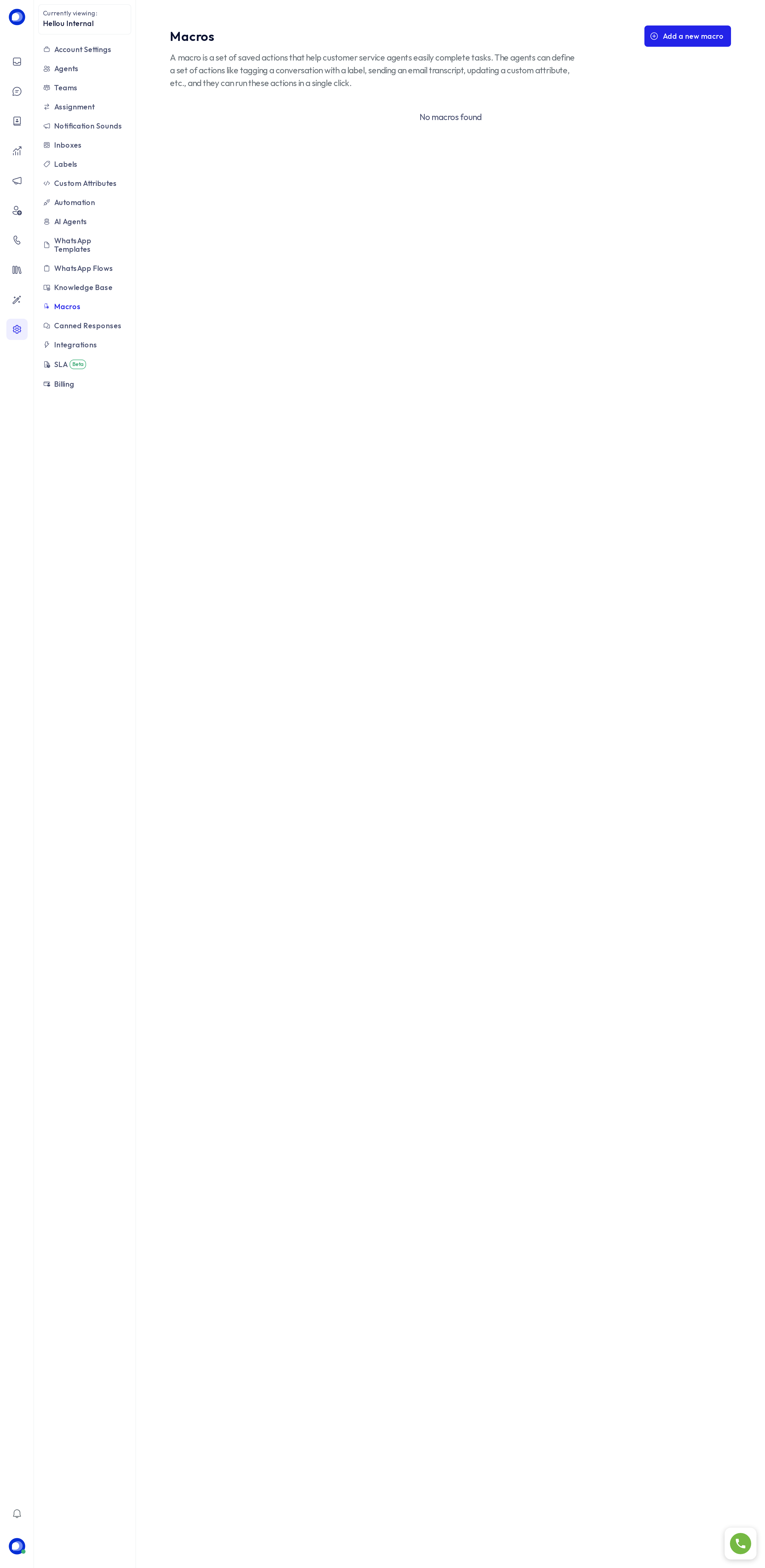
Create a macro
Under Settings → Macros, press Add macro.
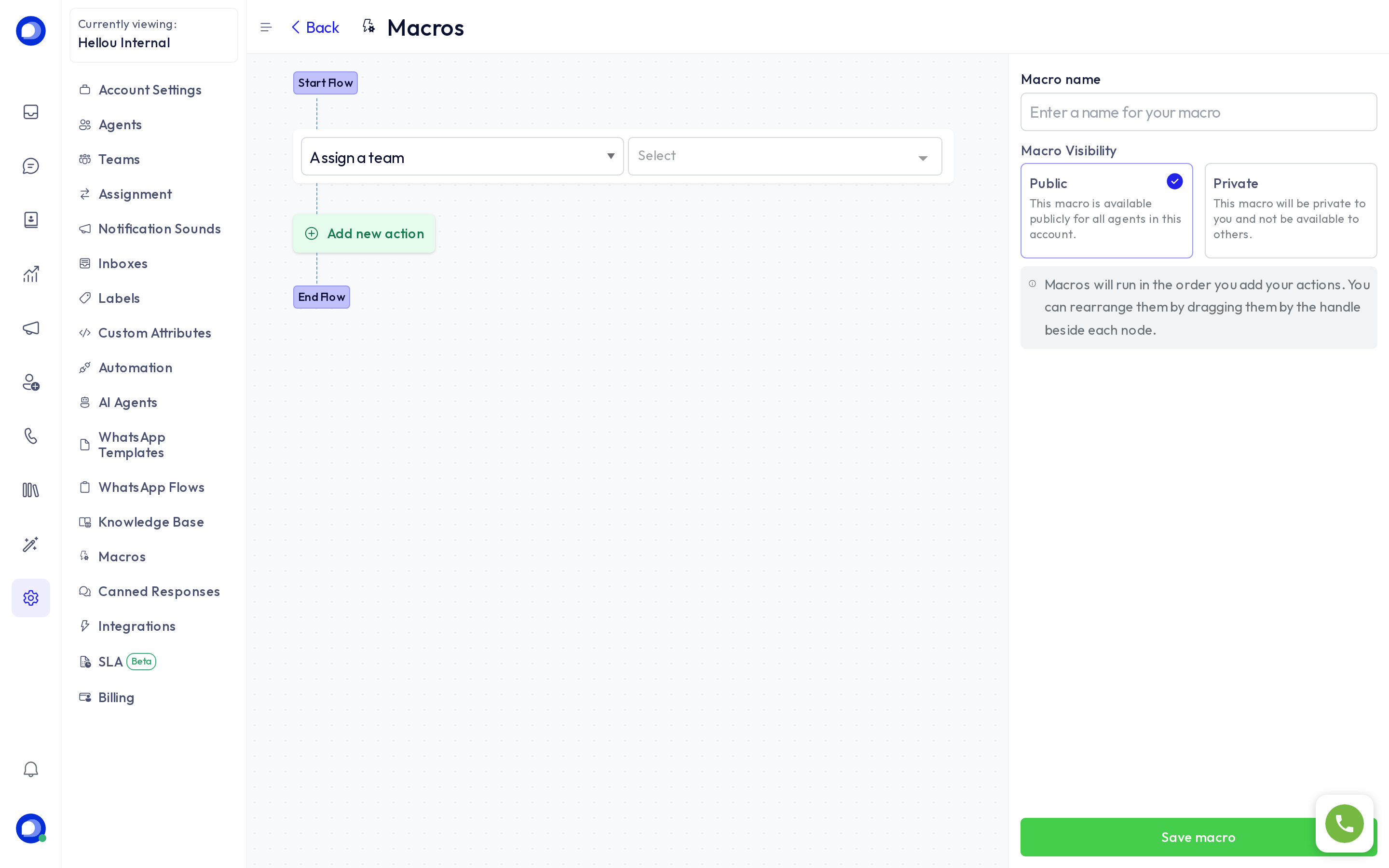
- Macro name: what the agent sees in the list.
- Visibility: Public is visible to every agent in the account; Private only to its creator. An agent can create private macros for themselves; public ones are created by administrators.
- Actions: press Add new action for each step. They run in the order shown; drag to reorder. Available actions: assign to a team or agent, add or remove labels, change status or priority, snooze, send a message, send a private note, send an attachment, email the team.
Press Save macro.
Run a macro
In a conversation, open the side panel and find the Macros section. Press Run on the one you want; each action is recorded in the conversation's activity.
Ideas
- Close as spam: label spam, private note, resolve.
- Escalate to billing: assign to the Billing team, high priority, message to the customer "Passing you to billing".
- Follow up tomorrow: note, label follow-up, snooze until tomorrow.
Macros do not replace canned responses (reusable text) or automations (which act on their own). Combine all three.