An automation rule watches an event and, when its conditions hold, runs actions: assign, label, change priority, send a message or an email, call a webhook. Rules replace the team's routine work.
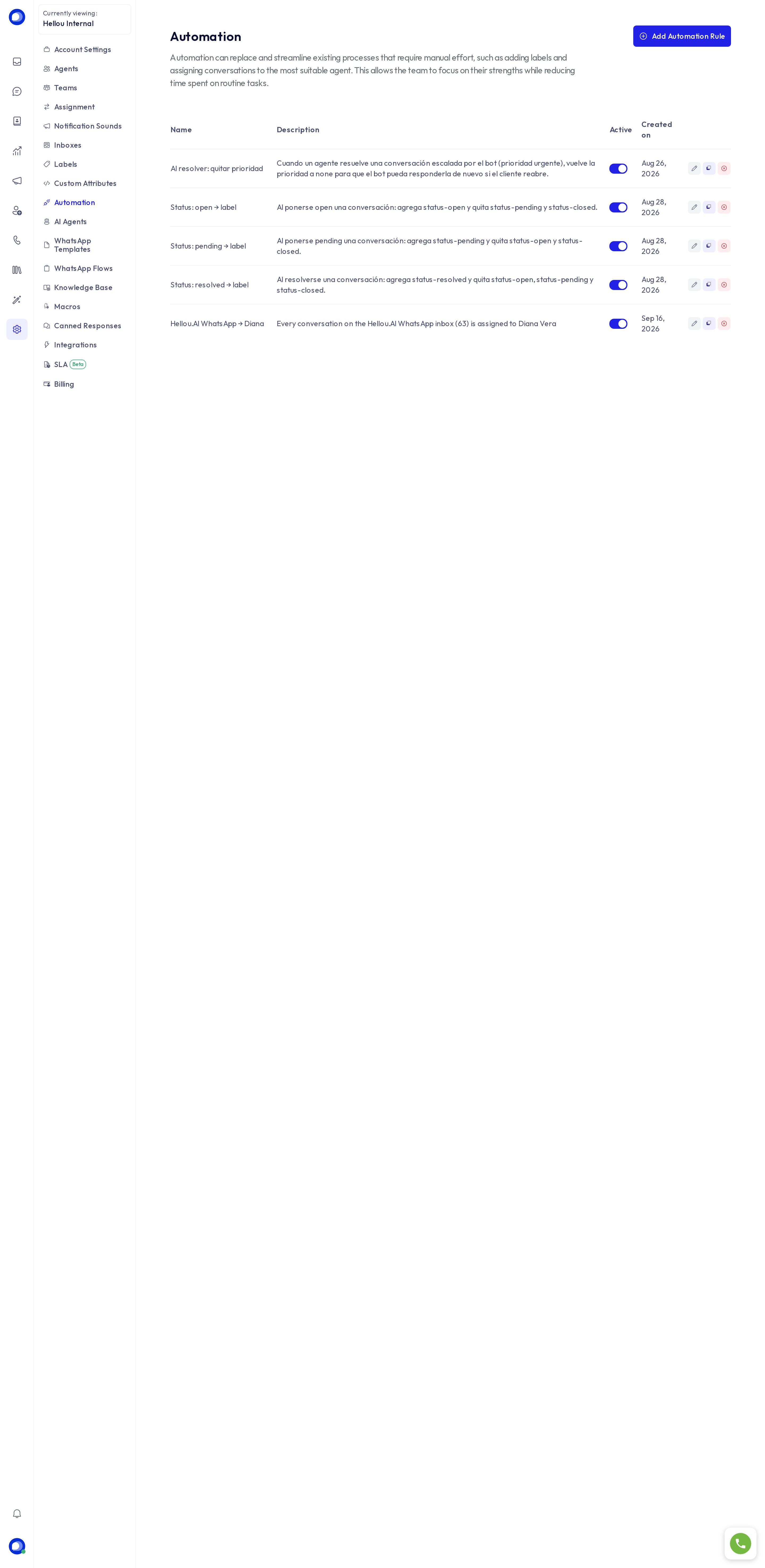
Create a rule
Under Settings → Automation, press Add automation rule.
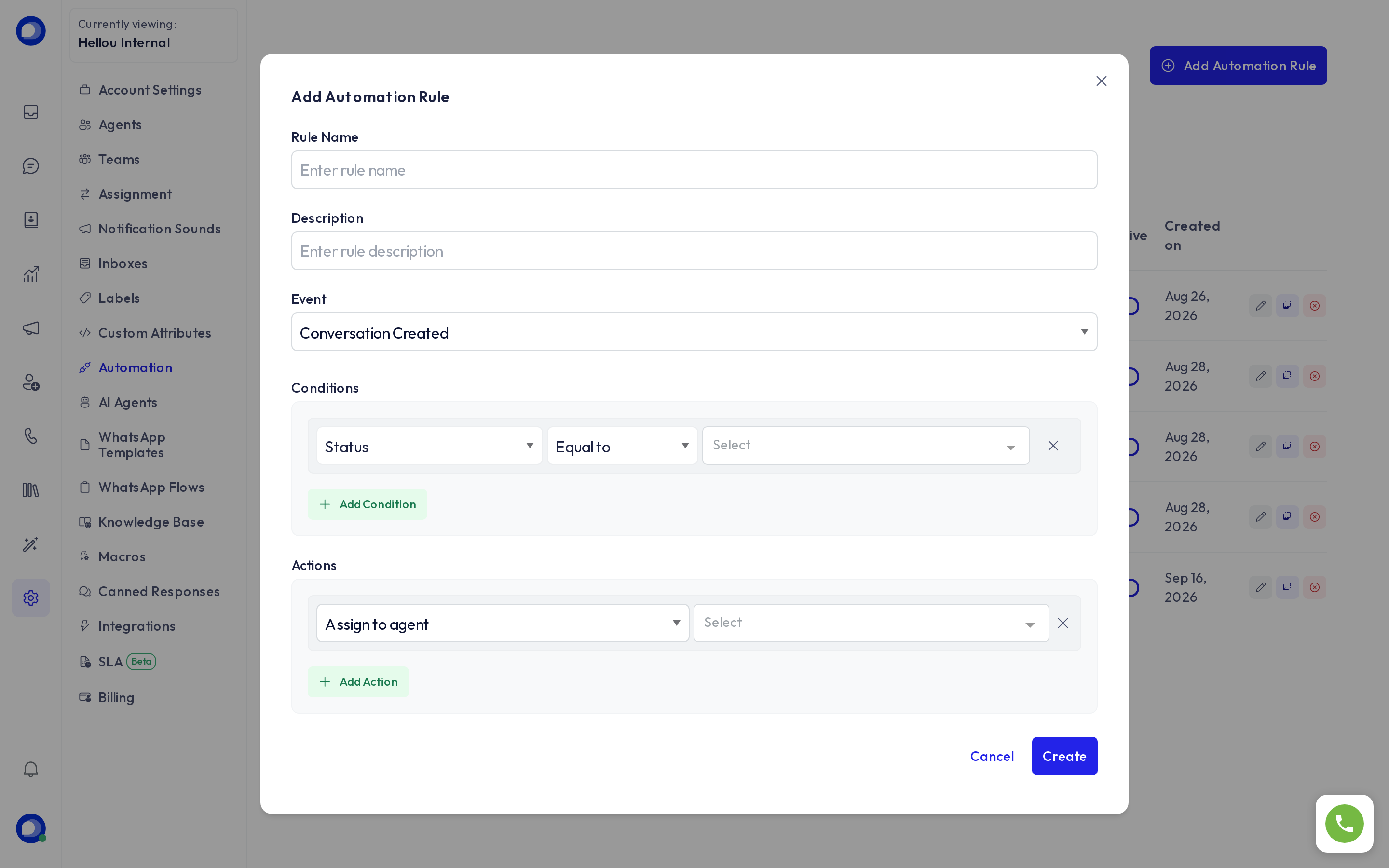
- Name and description: the name appears in the conversation's activity line when the rule acts.
- Event: when it is evaluated.
- Conversation Created: when a new conversation opens.
- Conversation Updated: when its status, assignee, priority, team or labels change.
- Message Created: on every new message.
- Conditions: all must hold. Combine status, priority, inbox, team, agent, labels, channel, browser language, country, custom attributes or the message content.
- Actions, in order: assign to an agent or team, add or remove labels, change priority or status, snooze, send a message or a private note, email the team or an attachment, or call a webhook.
Press Create. The rule is active; the switch in the list pauses it without deleting it.
Useful examples
- Status → label: on resolve, add status-resolved and remove status-open, so label reports count statuses.
- Hand back to the AI agent: when a conversation the AI agent handed over as urgent is resolved, clear the priority so the AI agent answers again if the customer writes back.
- One channel, one person: every new conversation on a given inbox assigned to one agent.
- Keyword: if the first message contains "invoice", label billing and assign the matching team.
Good practice
- One rule per intent; easier to pause and review.
- When several rules touch the same conversation, each acts on its own; avoid two rules undoing each other.
- A rule pointing at an agent, team or label that no longer exists disables itself and emails the administrators.
- For decisions that need the message understood (complaint, urgency, asks for a person) use the AI classifications in Assignment and in the AI agents; automation rules can then condition on those attributes.