Open Settings → Inboxes and press the cog on your website inbox. Seven tabs run along the top. This guide walks through them in order.
Settings
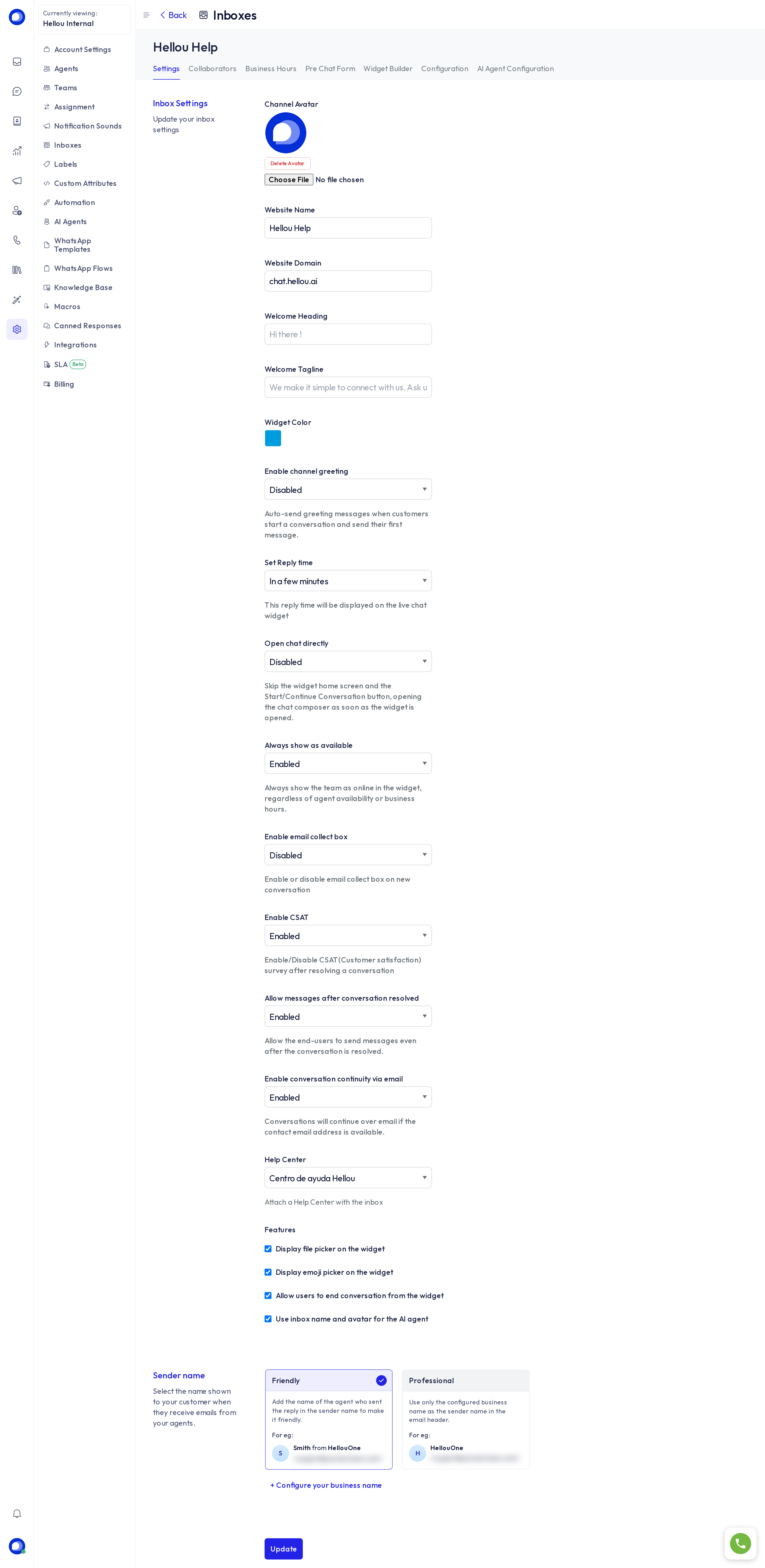
- Avatar and website name: what the visitor sees in the chat header.
- Website domain: the site the widget is installed on.
- Welcome heading and tagline: the greeting on the home screen. The Widget Builder also allows one greeting per language.
- Widget colour: the chat's brand colour.
- Enable channel greeting: sends an automatic greeting when each new conversation opens.
- Set reply time: what the widget promises the visitor ("in a few minutes", "in a few hours", "in a day").
- Open chat directly: skips the home screen and opens the message editor as soon as the widget opens.
- Always show as available: the widget shows the team online even when nobody is.
- Enable email collect box: asks the visitor for an email before the first reply.
- Enable satisfaction survey: sends the CSAT survey on resolve.
- Allow messages after the conversation is resolved and Enable conversation continuity via email: the visitor can keep writing, and if they left an email the conversation continues by email.
- Help center: links a help center so the widget gets a Help tab.
- Features: file picker, emoji picker, let the visitor end the conversation, and use the inbox name and avatar for the AI agent.
- Sender name: in continuity emails, "Friendly" signs with the agent's name and the business; "Professional" with the business only.
Press Update at the bottom.
Collaborators
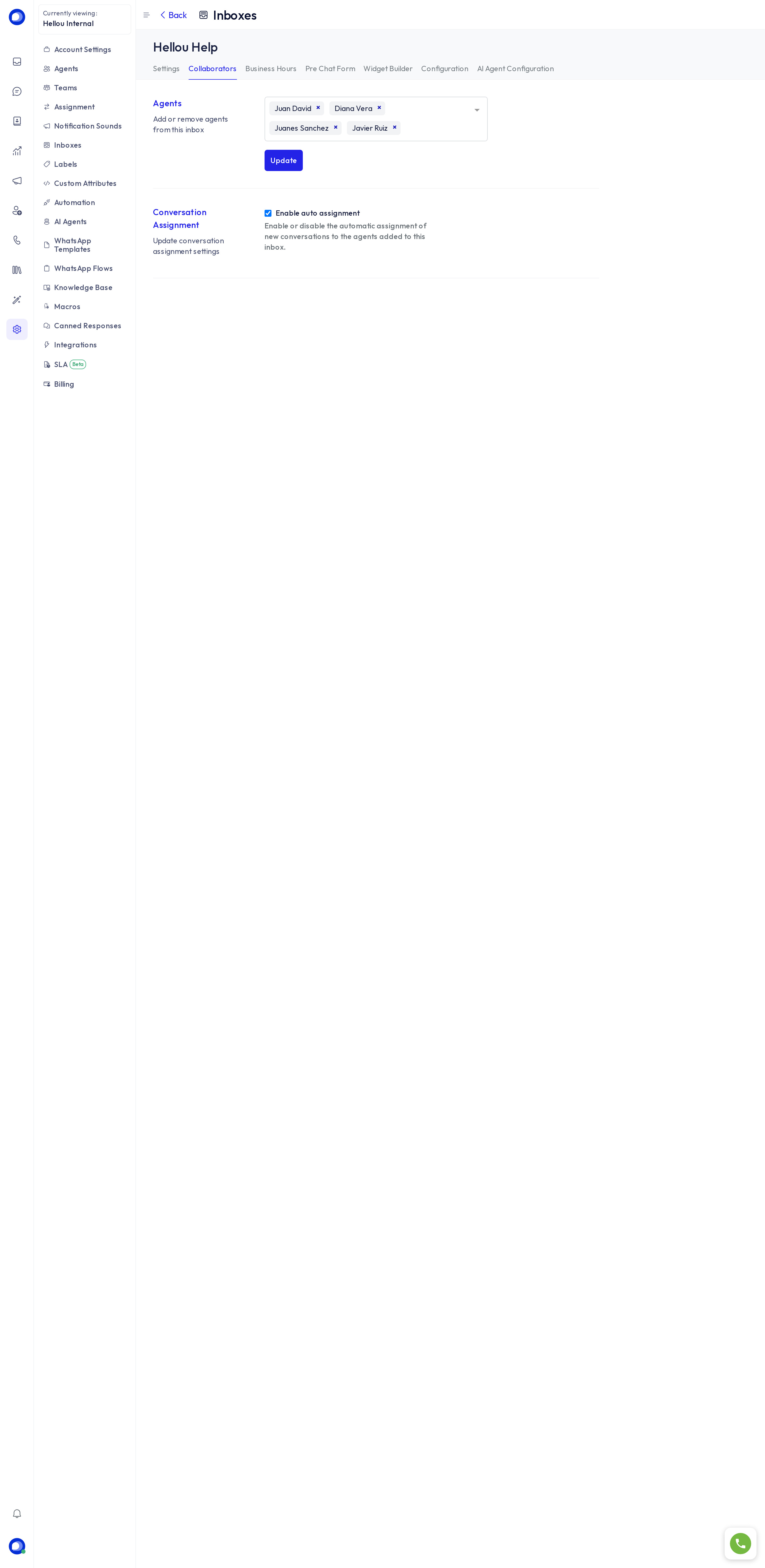
Who receives conversations from this inbox. Add or remove agents and press Update. An agent who is not listed here neither sees nor receives this channel, even as a team member.
Business hours
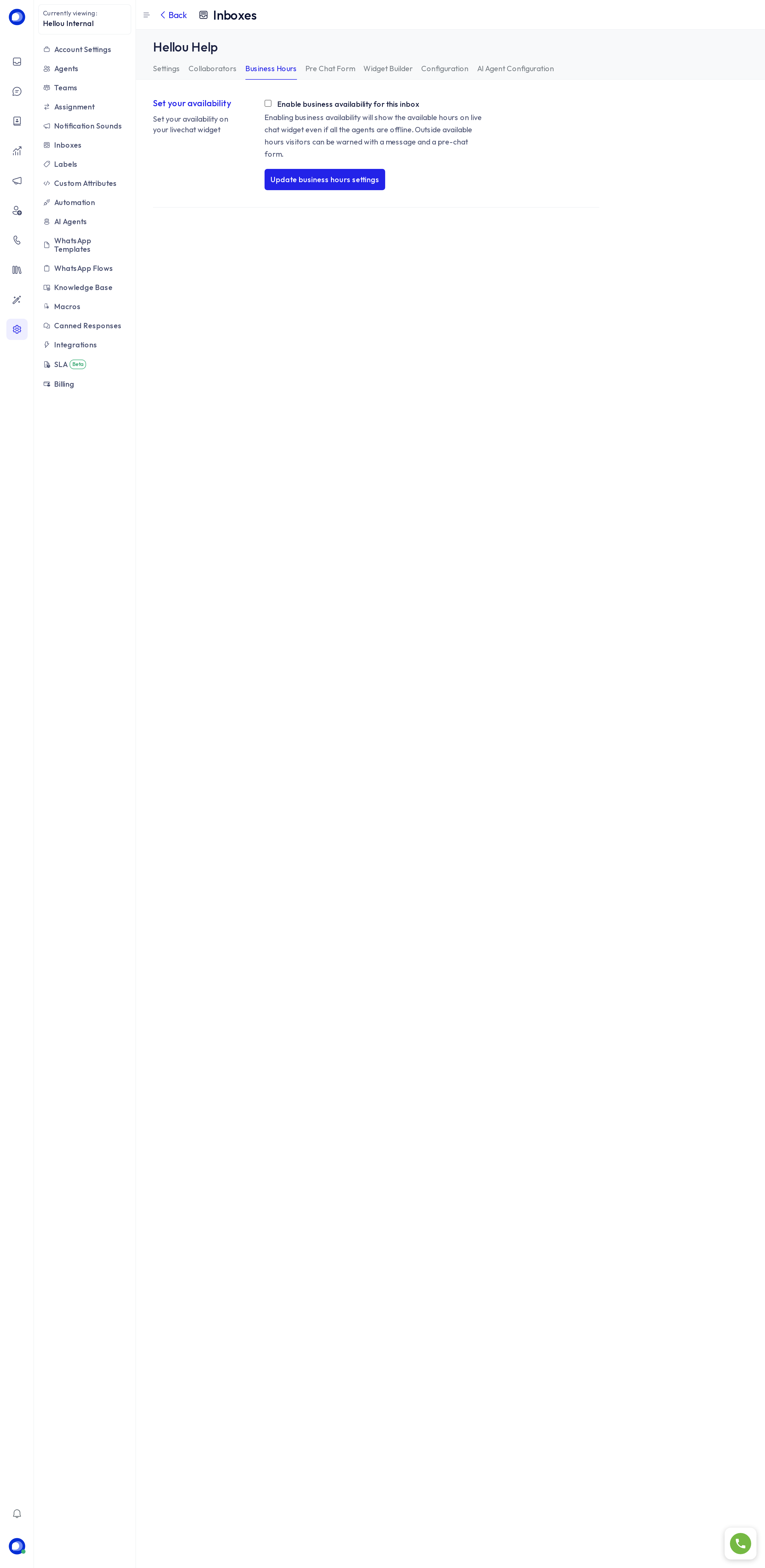
Turn on Enable business availability, pick the time zone and tick the days and hours you work. Outside those hours the widget shows the unavailability message you write here. AI agents have their own hours in their editor; these are the human team's.
Pre-chat form
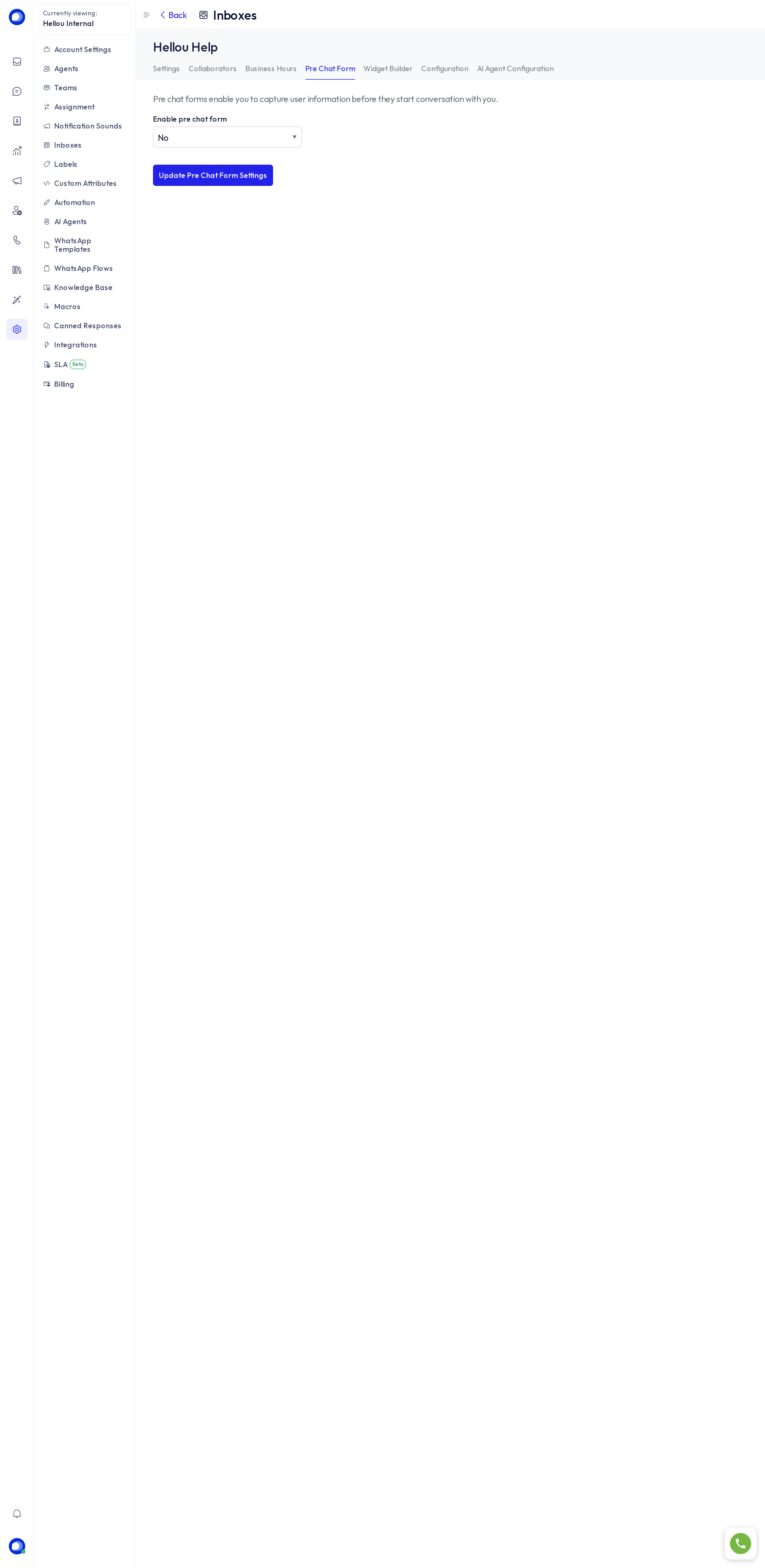
A form the visitor fills in before writing: name, email, phone and any fields you add. Show it always or only when nobody is online, and mark each field as required.
Widget Builder
How the chat looks on your site: colours, theme, home screen, help center, launcher and corners, with a live preview. It has its own guide: Customize your website widget.
Configuration
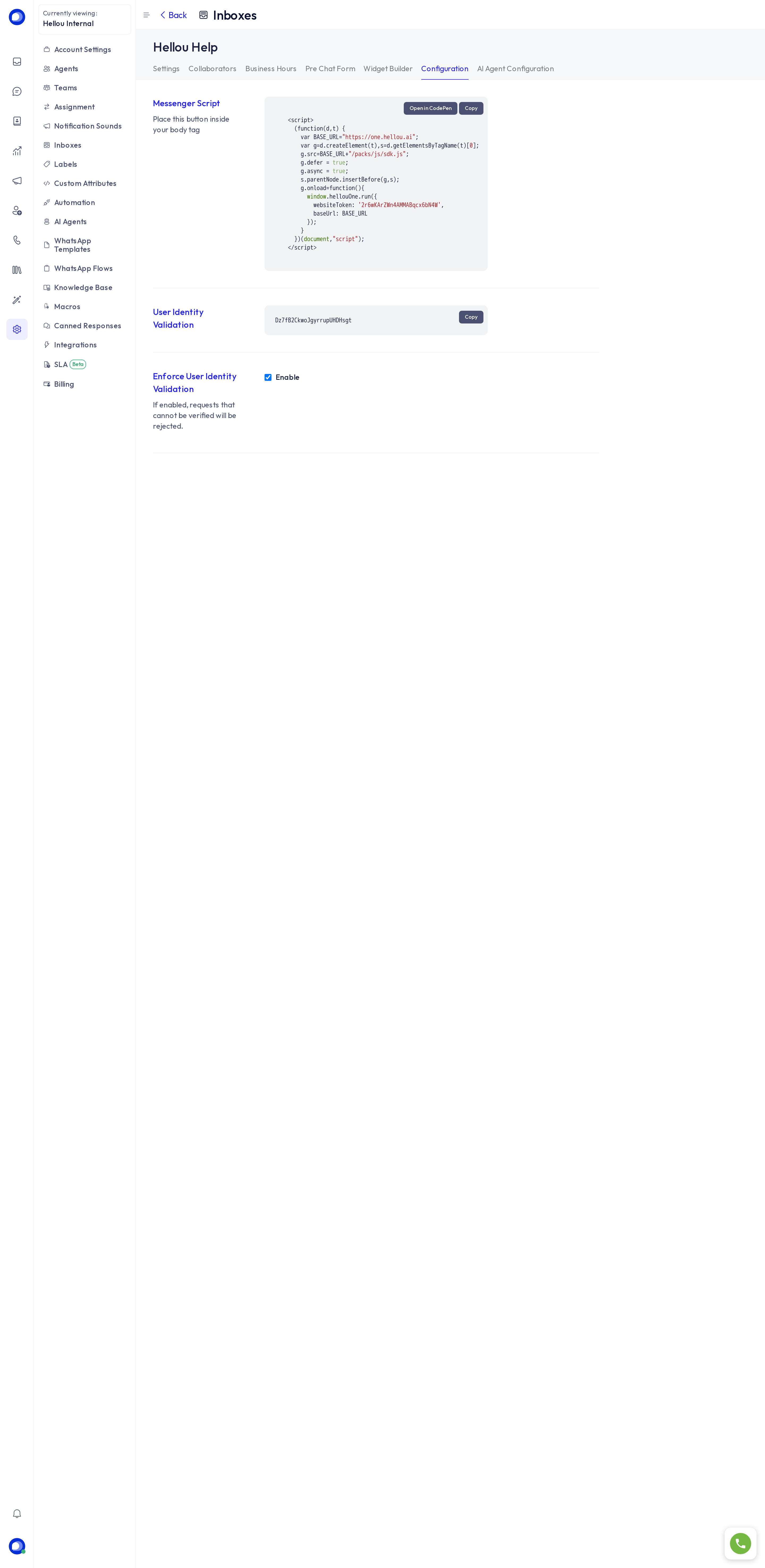
- Embed code: the script you paste into your site. Needed once.
- Identity validation (HMAC): if your site identifies signed-in users, here is the key to sign that identity and the option to make it mandatory, so nobody can pose as another user.
- Website token: this inbox's identifier for the API and the SDK.
AI agent configuration
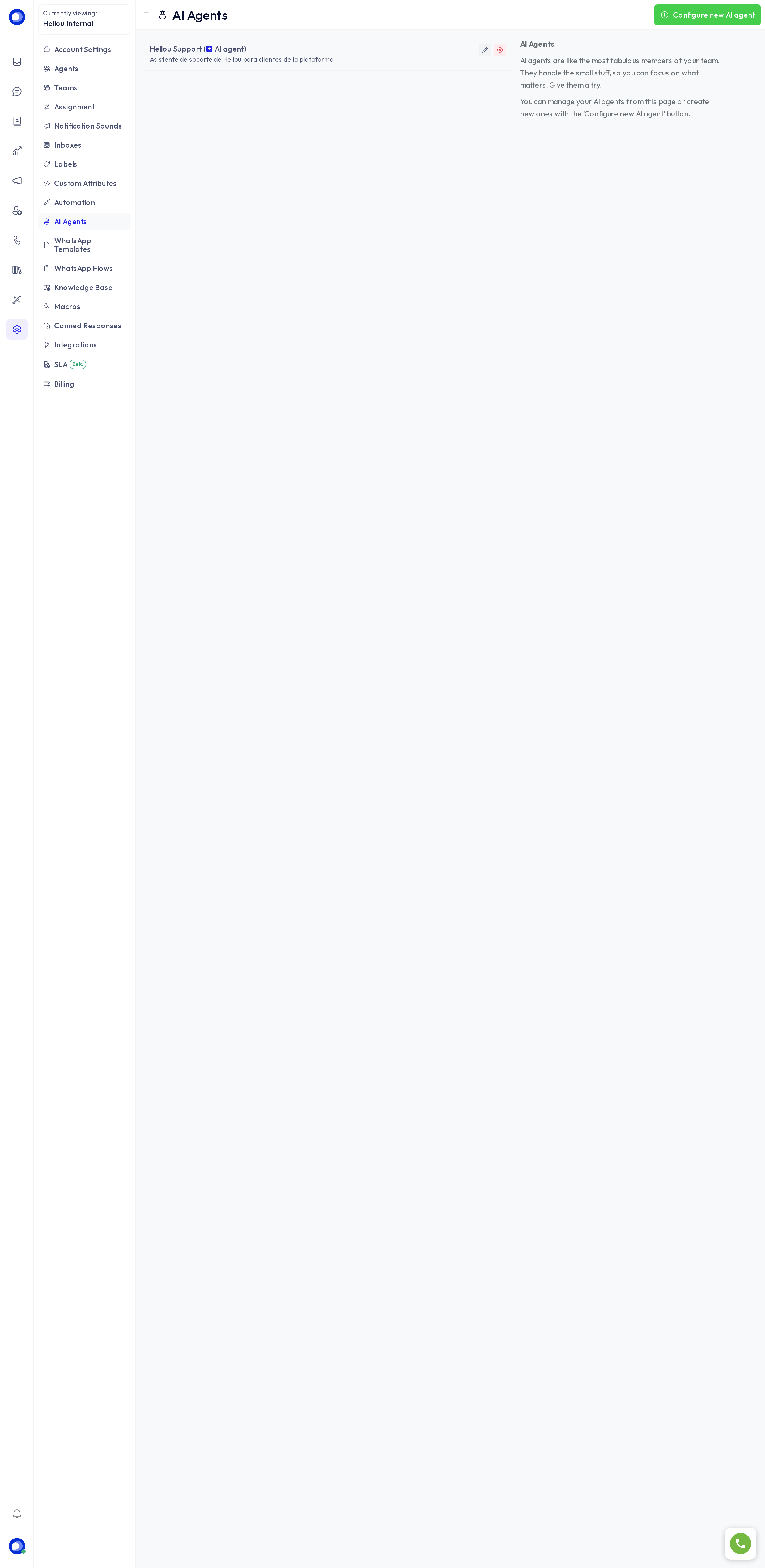
Pick which AI agent answers in this inbox, or none. You can pause and resume it from here without touching its configuration.