HellouOne can play a sound when a conversation is assigned to you, when a new message arrives, or when someone mentions you. Under Settings → Notification sounds an administrator sets the account defaults; every agent can then change them for themselves in their profile.
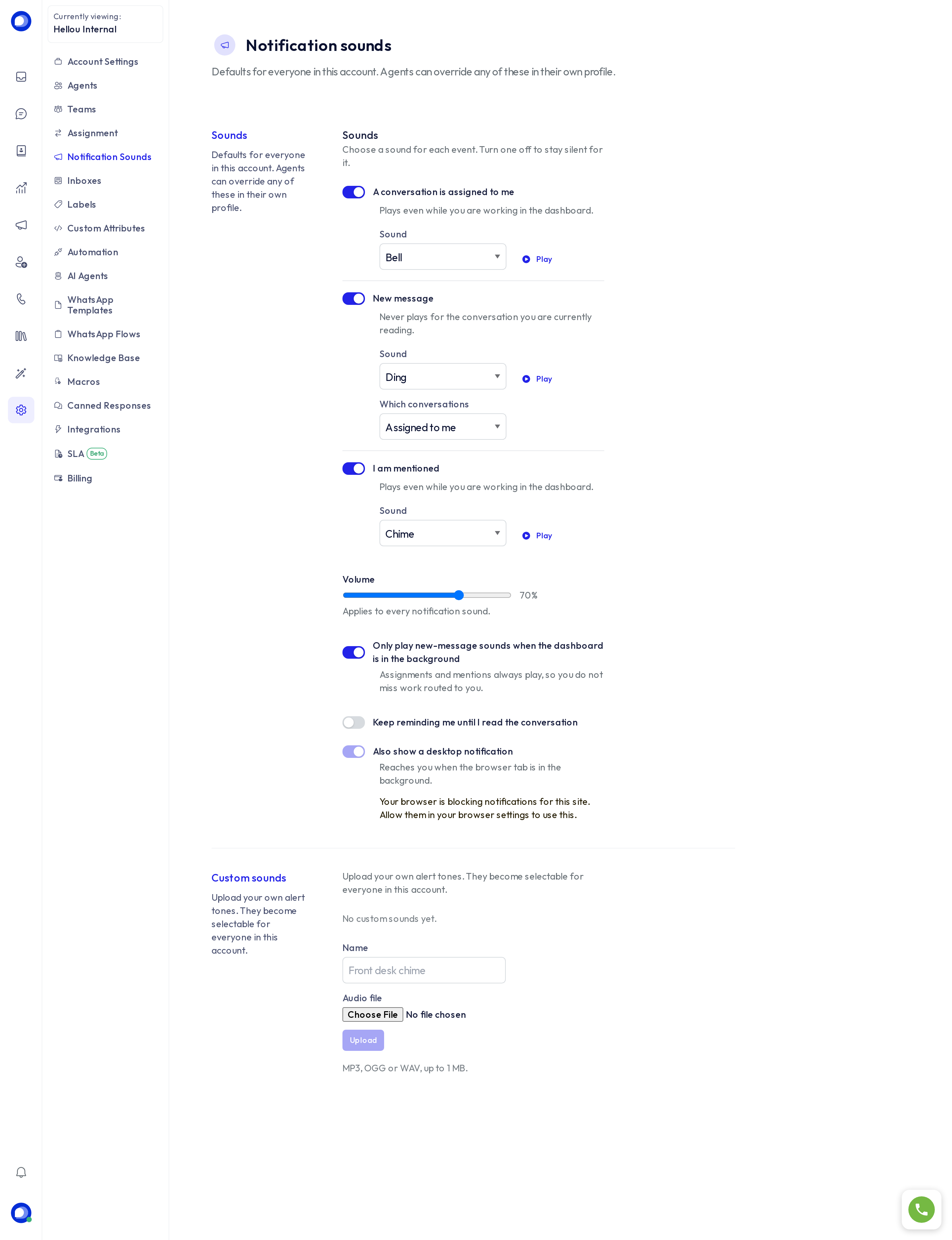
One sound per event
- A conversation is assigned to me: plays even while you work in the dashboard, so new work never slips by.
- New message: never plays for the conversation you are already reading. Under Which conversations you choose alerts for only the ones assigned to me or for all the ones you can see.
- I am mentioned: when a colleague mentions you in a private note. Also plays with the dashboard in the foreground.
Switch an event off to never hear it. Each event has its own Sound; press Play to hear it before saving.
Volume and behaviour
- Volume: one control for every sound.
- Play the new-message sound only when the dashboard is in the background: handy if the dashboard is always open and you don't want to hear every message. Assignments and mentions keep playing.
- Keep alerting me until I read the conversation: repeats your most important pending alert at an interval (Alert me every) until you open the conversation.
- Also show a desktop notification: a system notification reaches you when the browser tab is in the background. The browser asks for permission the first time; if you blocked it, allow it in the browser settings.
Press Save defaults.
Custom sounds
The Custom sounds tab lets you upload your own tones (MP3, OGG or WAV, up to 1 MB each, up to 20 per account). They become available to every member of the account in each event's sound list. Deleting a tone someone uses sends that person back to the default.
What each agent decides
The preferences an agent saves in their profile take precedence over the account defaults. If an agent says they hear nothing, check their profile first, then the sound and notification permissions of their browser.